Schedule Claude Code with Windows Task Scheduler
One register-job.ps1 line makes Windows Task Scheduler run Claude Code's hello job at 09:05 every day. Each morning, the status table shows the last result, the next run and whether you need to log in again.
Windows harness series, part 7 of 11 Previous Download the kit and run a first job Next A morning GA4 report job
This part puts the hello job from part 6 into Windows Task Scheduler, the scheduling tool built into Windows. Once it is registered, hello runs by itself at the same time every day, as long as the PC is on and you are logged on.
You keep using the $HOME\harness folder from part 6. You do not need an administrator window. The kit's console lines and the status table are in Korean, and this page translates them; to get English answers from Claude, point a job card at the English prompts in prompts/en as shown in part 6, step 3.
When you finish this part
- Result: hello runs by itself at 09:05 every day (while the PC is on and you are logged on).
- You need: a PC that has finished part 6 (hello ran by hand).
- Cost: none. Scheduled runs use the Claude plan you logged in with in part 4.
Contents (7)
Step 1: Register hello for 09:05 every day
Open a new PowerShell window and go to the kit folder.
cd $HOME\harnessPaste the execution policy line from part 6, step 4.
register-job.ps1is a script too, so this window has to allow it.Set-ExecutionPolicy -Scope Process -ExecutionPolicy Bypass -ForceRegister hello. After
-At, give the time as hours:minutes..\register-job.ps1 -Name hello -At 09:05
You are done when
You see TaskName : hello and a NextRunTime line with the next run time. On our Korean-language PC it read 2026-11-12 오전 9:05:00 (오전 means AM); your date and format will differ.
register-job.ps1 registers the job with these settings. The values below were read back from Task Scheduler after registering.
| Setting | Kit value | In plain words |
|---|---|---|
| Time | Daily at 09:05 | Starts at the same time every day. |
| Missed runs (StartWhenAvailable) | On | If the PC was off or asleep at that time, the job runs once after it is back on. |
| Battery | Starts on battery, keeps running | By Windows default, a task does not start on battery and stops if the PC switches to battery. The kit lets it run on a laptop battery. |
| Overlap (MultipleInstances) | IgnoreNew | If the previous run is still going, the new one is dropped. |
| Run limit (ExecutionTimeLimit) | Job card limit + 10 minutes, at least 1 hour | The job card (the job definition file in the jobs folder) sets a time limit; the kit adds 10 minutes. Past this, Task Scheduler stops the job. The Windows default is 72 hours. In our test a 300-second job got 1 hour and a 5,400-second job got 1 hour 40 minutes. |
| Logon (LogonType) | Interactive | Runs only while you are logged on. No password is stored. |
| Rights (RunLevel) | Limited | Runs with normal rights, not as administrator. |
At run time, Task Scheduler starts PowerShell with a hidden window (-WindowStyle Hidden) and with the same Bypass execution policy as part 6 (-ExecutionPolicy Bypass), then runs run-job.ps1. That is why scheduled runs do not need the line from part 6. Even with the window hidden, a window may flash briefly as the run starts.
Registering the same name again replaces the earlier schedule, so to change the time, run the same command with the new time. The schedule goes into a folder named \my-harness\ inside Task Scheduler.
Step 2: Start it once now
Instead of waiting for 09:05, start the scheduled job right away.
Start the job now. This command only starts it and returns at once.
Start-ScheduledTask -TaskPath '\my-harness\' -TaskName helloWait about 15 seconds, then look at the last-run information. In our test it started at 2:22:05 AM, and the status table's finished-at time was 02:22:13.
Get-ScheduledTaskInfo -TaskPath '\my-harness\' -TaskName helloCheck that new start and end lines were added to the log.
Get-Content .\logs\hello.log
You are done when
LastRunTime shows the time you just started it, and the last log line shows status=ok exit=0.
LastTaskResult is the result the last run returned. It was 0 in our test, and the state file said ok at the same time. Microsoft's docs do not list what each number means, so judge a run by the log and the state file.
Step 3: Check the status table each morning
The status table is what status.ps1 shows: one row per job with its last result, finish time, next run and a sign-in warning. There are two ways to open it.
Way 1: double-click status.cmd in File Explorer
In File Explorer, open the
harnessfolder inside your user folder. If a PowerShell window is open, this line opens it too.explorer $HOME\harnessDouble-click
status.cmd. A black window shows the status table, and the last line readsPress any key to continue . . ..Read the table, then press any key to close the window.
status.cmd calls status.ps1 with the Bypass execution policy, so it needs no execution policy line. We ran it through cmd on our PC and saw the table and that last line.
Way 2: in a PowerShell window
Open a window, enter
cd $HOME\harnessand the execution policy line, then show the table..\status.ps1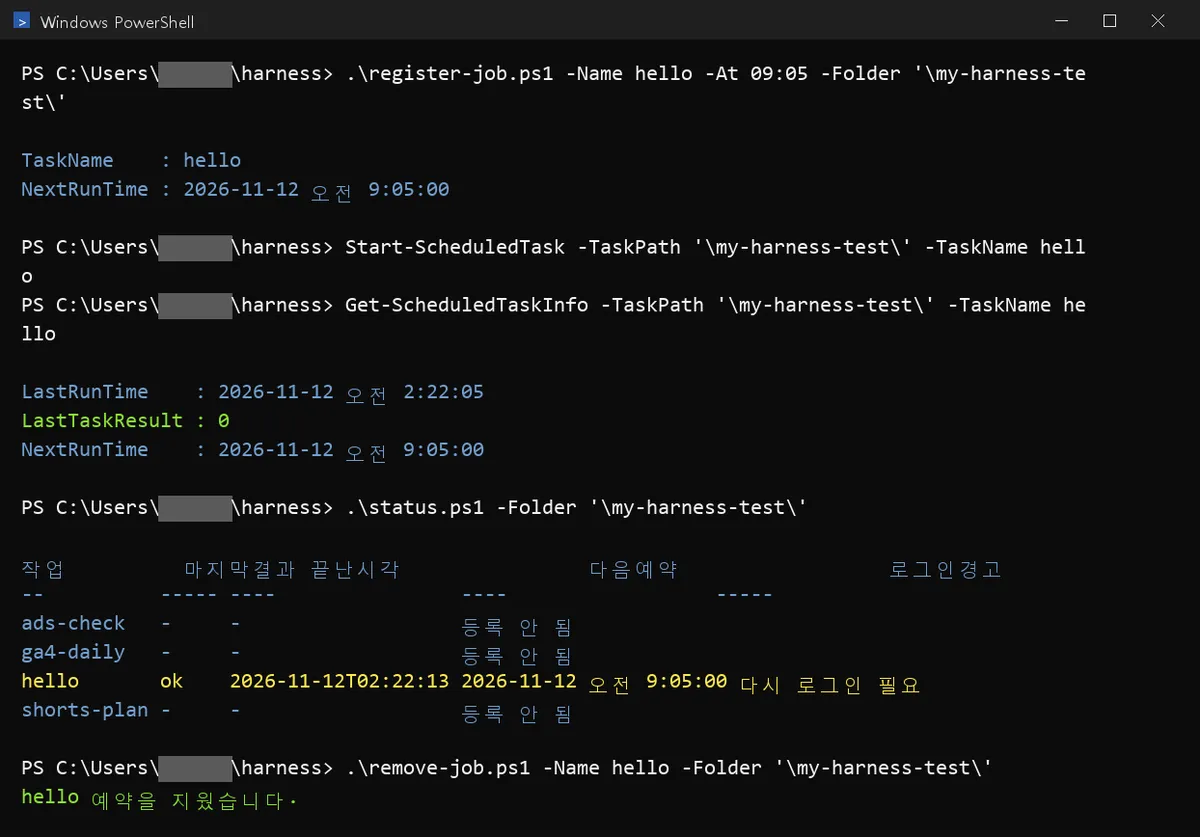
Real output from a scheduling test with a freshly unzipped kit on our PC, Nov 12, 2026 at 02:22. Because it was a test we added -Folder '\my-harness-test\' to each command; you do not. Only hello was registered and run, so the other three rows are empty. This is our Korean-language Windows PC running the Korean kit: 오전 means AM, the table headings are translated below, and the last line reads hello 예약을 지웠습니다 (hello schedule removed).
The table headings are in Korean. Read them left to right:
- 작업 (job): the job card name from the
jobsfolder. - 마지막결과 (last result): the result from the state file (ok, error or timeout). A job that has never run shows
-. - 끝난시각 (finished at): when the last run ended.
- 다음예약 (next run): when Task Scheduler will run it next. A job that is not scheduled shows
등록 안 됨(not registered). - 로그인경고 (login warning):
다시 로그인 필요(log in again) appears if the last run printed the login expiry warning. Log in again as in part 4, step 5.
A last result of ok only tells you the run ended without an error. Every kit prompt ends its report with a verdict line, 판정: 완료 (done) or 판정: 일부 실패(reason) (partly failed), or Verdict: done / Verdict: partial failure (reason) with the English prompts, so read that line too. Open the most recent report with this line:
notepad .\reports\latest-hello.mdStep 4: Schedule other jobs, and remove one
You register ga4-daily, ads-check and shorts-plan one at a time in parts 8 to 10. In each part you add your data and run the job once by hand, then register it with the same register-job.ps1 command, spacing the times apart (for example 09:30, 09:40 and 10:00). On the practice data, all three jobs finished within 20 seconds.
To remove a schedule, use the line below. It prints a Korean line saying the hello schedule was removed, and the kit files stay where they are. Afterwards the next-run column in the status table reads 등록 안 됨 again. Removing a schedule that does not exist ends with an error, and that line is not printed.
.\remove-job.ps1 -Name helloIf you get stuck
| If you see | Why | Do this |
|---|---|---|
running scripts is disabled on this system | The new window does not have the execution policy line. | Paste the line from part 6, step 4 and run again. |
파일이 없습니다. 작업 이름을 확인하세요. (the file does not exist, check the job name) | The name after -Name does not match a file in jobs. | Use the file name from jobs without .json. |
Registered, but the next-run column says 등록 안 됨 | You registered into another folder with -Folder. | Add the same -Folder to status.ps1. |
| It did not run at the scheduled time | The PC was off, or you were not logged on. | A missed run fires once after the PC is back on. Stay logged on. |
remove-job.ps1 prints an error starting CIM 서버 에서 Root/Microsoft/Windows/TaskScheduler/... (on our Korean-language PC) | There is no such schedule: it was already removed, or the name or -Folder differs. | Check the next-run column in the status table. |
The login warning column says 다시 로그인 필요 | The last run printed the login expiry warning. | Log in again in the separate settings folder, as in part 4, step 5. |
In the real harness
As of Nov 11, 2026, the SugarMount harness had 14 jobs registered in one Task Scheduler folder, and that morning every LastResult in the list was 0.
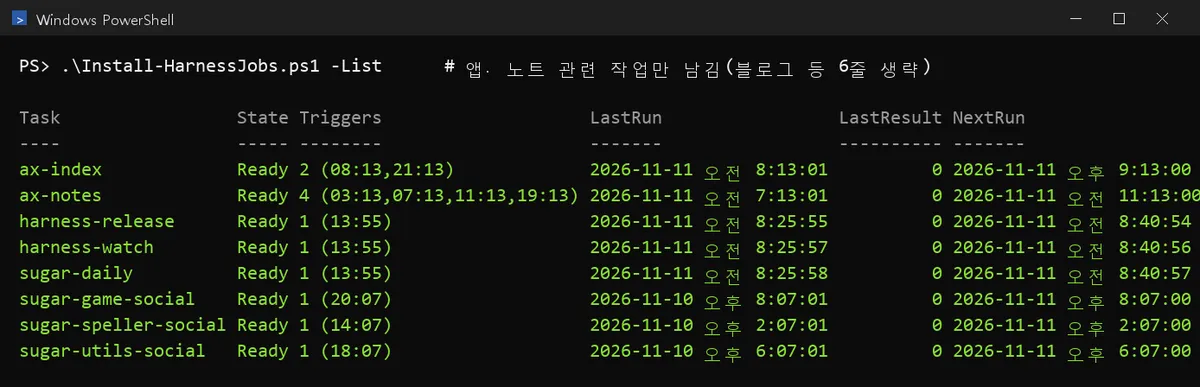
The kit is a cut-down version of this harness. The real one has extra safeguards added after something went wrong; two of them came from these events.
| Safeguard | What happened | In the kit |
|---|---|---|
| Separate production copy | From the evening of Nov 4 to the morning of Nov 6, about 38 hours, every job stopped at a pre-run check. Harness code that was being edited had not been committed (recorded as final) in the repository. Since Nov 7, production runs from a separate copy, and only changes that pass checks reach it. | None |
| Verdict line | On Nov 10 one app's social job posted nothing because there was no video queued, yet its status was ok, and that night's daily summary said zero failures or misses. Since Nov 11 every job ends with a verdict line. | Yes, in all four prompts |
The way the window is hidden also differs. The real harness starts PowerShell through conhost.exe --headless, but we found no official documentation for that option, and security tools sometimes treat it as a warning sign, so the kit does not use it.
FAQ
What happens to a scheduled job if the PC is off?
It does not run at that time. The kit registers missed runs to fire once after the PC is back on, and even then you need to be logged on.
Do scheduled jobs run on a laptop battery?
With the kit, they do. By Windows default a task does not start on battery, but register-job.ps1 sets it to start on battery and keep running.
As of Nov 12, 2026. Microsoft documentation (the PowerShell ScheduledTasks module and Task Scheduler settings pages), output from a scheduling test on our PC, and the harness's registered-job list and state files (Nov 11, 2026).
This note is written from values SugarMount measured itself; an AI coding agent was used to draft it.