17 days of a Claude Code harness: how to start
Take reports only for the first week, log failures by date, read the verdict line instead of trusting "ok", put the sign-in expiry date on your calendar, then add jobs one at a time.
Windows harness series, part 11 of 11 Previous Planning TikTok, Reels and Shorts
In Parts 6 to 10 you built four jobs with the kit. This part takes SugarMount's own harness log from October 25 to November 10, 2026 (17 days) and turns it into a start-up order and a morning check routine for your kit.
When you finish this part
- Result: each morning you check the harness with the status table and the verdict line, and you know which job to switch on next.
- You need: hello scheduled (Parts 6-7) and the ga4-daily job (Part 8).
- Cost: nothing extra.
Contents (8)
Step 1: Take reports only for the first week
Shadow running means the AI analyzes and reports but changes nothing. The kit's three report jobs tell Claude "do not edit or create files" and allow only reading tools (Read, Glob), so using the kit as shipped is already shadow running.
Open PowerShell and go to the kit folder.
cd $HOME\harnessAllow scripts in this window only (Part 6). Do this first every time you open a new window.
Set-ExecutionPolicy -Scope Process -ExecutionPolicy Bypass -ForceSchedule ga4-daily for 09:30 every day. Skip this if you already registered it in Part 8.
.\register-job.ps1 -Name ga4-daily -At 09:30From the next day, for a week, put that morning's GA4 CSV into the data\ga4 folder before the scheduled time, with a name that starts with today's date, such as
2026-11-12-events.csv(Part 8).After the scheduled time, open the latest report.
notepad .\reports\latest-ga4-daily.mdPick three numbers tagged
[GA4 CSV]in the report and find the same numbers in the original CSV in the data\ga4 folder.
It worked if
For a whole week, every number you picked matches the CSV. If even one doesn't, don't move on to the next job yet.
From SugarMount's log
SugarMount's harness ran in shadow mode for three days, October 25 to 27, and the reports went wrong at least twice in that time. Once a failure-rate calculation used the wrong denominator, and a correction line was added. Another time a report said the old chat-session schedule "appears not to have run"; in fact the AI had searched the records with a date-only query that missed that day, and the next day's report corrected it.
Step 2: Look at failures by date
Writing results down by date shows whether a failure repeats, and whether several jobs failed on the same day.
Each morning, double-click
status.cmdin the harness folder in File Explorer to open the status table (Part 7). From PowerShell, this line opens the folder:explorer $HOME\harnessFor any job whose 마지막결과 (last result) column isn't
ok, open its log in a PowerShell window (after thecdline from Step 1).Get-Content .\logs\ga4-daily.logWrite the date, the job and the last result on one line in Notepad.
In a PowerShell window, the two lines from Step 1 followed by .\status.ps1 show the same status table.
It worked if
The table shows ok under 마지막결과 (last result), today's date under 끝난시각 (finished at), and tomorrow's time under 다음예약 (next run). The kit prints these column names in Korean.
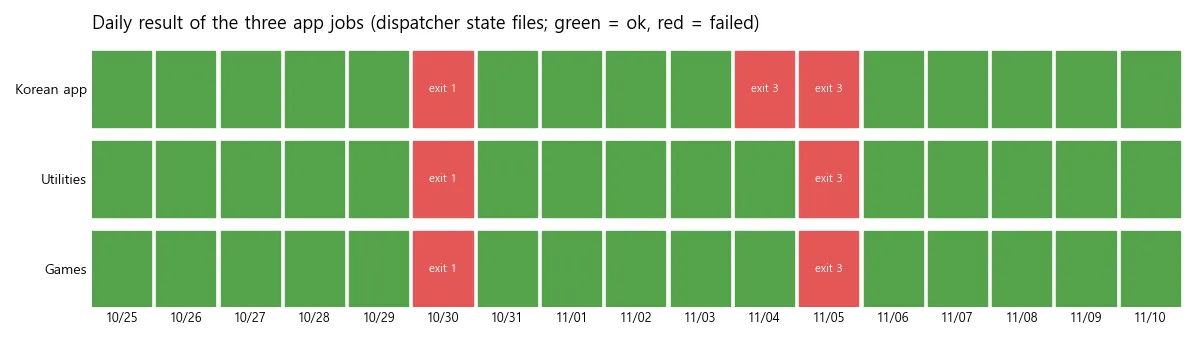
The number after exit in the chart below is an exit code: the number a program leaves behind when it ends. 0 means it finished without an error. The Nov 6 cells are green because that morning's failed runs were rerun the same day and succeeded.
From SugarMount's log
7 of the 51 cells failed. On October 30 all three jobs hit the plan's weekly usage limit (You've hit your weekly limit). On November 4 only the Korean app stopped, because the previous day's run had left changed files behind. Right after that, for about 38 hours, uncommitted edits to the harness code stopped every scheduled job at the preparation step (Part 7).
Step 3: Don't read "ok" as success
ok in the status table only means the run ended without an error. Whether the work got done is in the verdict line that all four kit jobs write at the end of each report. With the default Korean prompts it reads 판정: 완료 (done) or 판정: 일부 실패(reason) (partly failed). If you switched a job to the English prompts in prompts/en (Part 8), it reads Verdict: done or Verdict: partial failure (reason).
Open that day's report.
notepad .\reports\latest-ga4-daily.mdNear the bottom, find the line that starts with
판정:orVerdict:.If it says partly failed, read the reason in brackets. "No file" (
파일 없음) means there is no CSV in the data\ga4 folder; "no file for today" (오늘 넣은 파일 없음) means no file name starts with today's date.
It worked if
You see 판정: 완료 or Verdict: done.
From SugarMount's log
On November 10, 2026, the utility app's social job found its video queue empty and posted nothing, yet the runner recorded ok, and that night's daily summary showed "0 failed or missed". From November 11 every job ends with a verdict line, and all four kit prompts carry the same line.
Step 4: Put the sign-in expiry on your calendar
A Claude Code sign-in has an end date, and without a sign-in a run fails. Before it ends, sign in again in the separate settings folder for scheduled jobs (.claude-harness).
If the 로그인경고 (sign-in warning) column shows
다시 로그인 필요(sign in again), open that job's log. It has a Korean line from the runner,주의: Claude 로그인 만료 예고가 나왔습니다. 전용 설정 폴더에서 다시 로그인하세요(sign-in expiry notice: sign in again in the jobs' settings folder), and a line that starts withWarning: this sign-in ends between. Read the two dates in the second one; it appears only in the log, not in the report.Get-Content .\logs\hello.logPick a day before the first date and write "Claude sign-in" on your calendar.
On that day, open a new PowerShell window and point it at the jobs' settings folder (Part 4).
$env:CLAUDE_CONFIG_DIR = "$env:USERPROFILE\.claude-harness"In the same window, start Claude Code, type
/login, and follow the browser steps.claude
It worked if
The terminal shows Login successful. Press Enter to continue.
From SugarMount's log
On November 12, 2026, every run that used the real harness's settings folder printed this line at the top of its answer:
Warning: this sign-in ends between 2026-11-18 and 2026-11-21 (in 7 days at the earliest). Renewing it does not move those dates. Run claude auth login before then, or use claude setup-token for unattended jobs.The claude setup-token it suggests creates a one-year token but does not save it anywhere (official docs), so you would have to store the token yourself. This series recommends signing in again instead.
Step 5: Add jobs one at a time
After the shadow week, switch on one job at a time and move to the next row only when the condition is met. Space out the start times so runs don't overlap.
| Order | Switch on | Move on when |
|---|---|---|
| 1 | hello, scheduled (Parts 6-7) | The status table shows ok and a next run time |
| 2 | ga4-daily at 09:30 (Part 8) | For a week the report's numbers match the CSV |
| 3 | ads-check at 09:40 (Part 9) | A person reads each suggestion and writes down what they changed |
| 4 | shorts-plan at 10:00 (Part 10) | A person posts the video and logs views in posted.csv |
| 5 | Approval inbox (beyond this series) | Only requests a person approved get carried out |
| 6 | Automatic changes within limits (beyond this series) | Set caps first. The real harness caps daily ad budgets at 5,000 Korean won per app and 12,000 won in total |
Common problems once it's running
| If you see this | Why | What to do |
|---|---|---|
Several jobs end within seconds and the log says You've hit your weekly limit | Your Claude plan's weekly usage limit was reached | Once the limit resets, run the job by hand, for example .\run-job.ps1 -Name ga4-daily |
Last result is ok but the report says 판정: 일부 실패 or Verdict: partial failure | The run ended without an error but didn't finish the work | Read the reason in brackets and check the data folder |
| No report file for today | The runner writes a report only for runs that end ok | Open the log and check the status in its last 종료 (end) line |
The sign-in warning column says 다시 로그인 필요 | The settings folder's sign-in is about to expire | Sign in again as in Step 4 |
In the real harness
SugarMount's harness sorts work into three permission levels:
- Do it now: free marketing, store listing text, documents, and releases that passed their checks.
- Ask first (queued for a person to approve): money, new or paused campaigns, ad settings, permissions, app names, prices, and big changes.
- Never (blocked by a check that runs just before each command): force-overwriting code history, printing secrets, installing packages, and 100% rollouts.
How that split was decided is written up in A permission table for a scheduled AI agent.
FAQ
How long should shadow running last?
SugarMount ran it for three days (October 25 to 27) and switched on live changes on October 27; adjusting daily ad budgets was handed over separately, on October 30 (Part 9). The reports went wrong at least twice even in those three days, so this series suggests a full week when you start.
Can a job show "ok" when the work didn't happen?
Yes. On November 10, 2026, one of SugarMount's posting jobs had no video to post and posted nothing, yet its status was ok. Read the report's verdict line as well.
As of Nov 12, 2026. SugarMount harness run state files and logs (Oct 25 to Nov 10, 2026), the shadow-run comparison reports (Oct 26 and 27, 2026), kit output run on Nov 12, 2026, and the Claude Code official docs (code.claude.com).
This note is written from values SugarMount measured itself; an AI coding agent was used to draft it.