Open PowerShell and paste your first command
Open Windows PowerShell from the Start menu and look at the start of the line. When it begins with PS, you are in the right window for every command in this series.
Windows harness series, part 2 of 11 Previous What a harness is Next Install Git and Claude Code
Everything in this series, from installing tools to running jobs, happens by typing commands into a PowerShell window. PowerShell is a command window that ships with Windows: you type a line of text and a program does the work. This part teaches only four moves: open the window, paste a command, run it, and read what comes back.
Part 1 explained what a harness is. From here on you use the keyboard, and the moves below repeat in every later part.
When you finish this part
- Result: you can open PowerShell, paste a command into it, and tell which folder you are in.
- You need: one Windows PC
- Cost: none
Contents (7)
Step 1: Check your Windows edition and version
Each tool in this series asks for a different Windows edition or version, so check yours before you install anything.
Hold the Win key and press R. A small box for typing opens.
Type the word below and press Enter.
winverIn the window that opens, find the edition name (Home, Pro and so on), the version and the build number, and compare them with the table.
| Tool | What the official docs require | In this series |
|---|---|---|
| Claude Code | Windows 10 1809 or later (or Windows Server 2019 or later), an x64 or ARM64 processor, 4 GB of RAM or more | Required |
| Docker Desktop | Windows 11 Pro, Enterprise or Education 23H2 (build 22631) or later, or Windows 10 Pro, Enterprise or Education 22H2 (build 19045) | Part 5, optional |
The Claude Code requirement names a version only, not an edition. The Docker list does not name Home at all. If you run Home, skip part 5 (Docker); Docker is optional, so the rest of the series still works.
You are fine if
You run Windows 11, which is newer than the Claude Code minimum (Windows 10 1809), or you run Windows 10 version 1809 or later.
Step 2: Open Windows PowerShell
Windows also has CMD (Command Prompt), which looks similar but accepts different commands. The commands in this series fail in CMD, so pick the right window.
Click the Start button at the bottom of the screen and type
PowerShell.In the results, click Windows PowerShell. Skip any entry ending in
(x86): that is the 32-bit version, and Claude Code will not install from it. Skip Windows PowerShell ISE too, the entry with ISE in its name.A new window opens with
Windows PowerShellin its title.Look at the first line inside the window. This line is called the prompt; it means the window is waiting for a command.
You are in the right window if
The prompt starts with PS. Claude Code's own setup page uses the same test: PowerShell shows PS before the path, while CMD shows the drive letter with no PS.
Step 3: Copy and paste a command
Copy commands from this page instead of typing them; one wrong character is enough to break a line. Practise with a command that prints your PowerShell version.
Select the text in the grey box below with your mouse and press Ctrl+C.
$PSVersionTable.PSVersionClick once inside the PowerShell window.
Press Ctrl+V. The text appears after the prompt.
Press Enter to run it.
It worked if
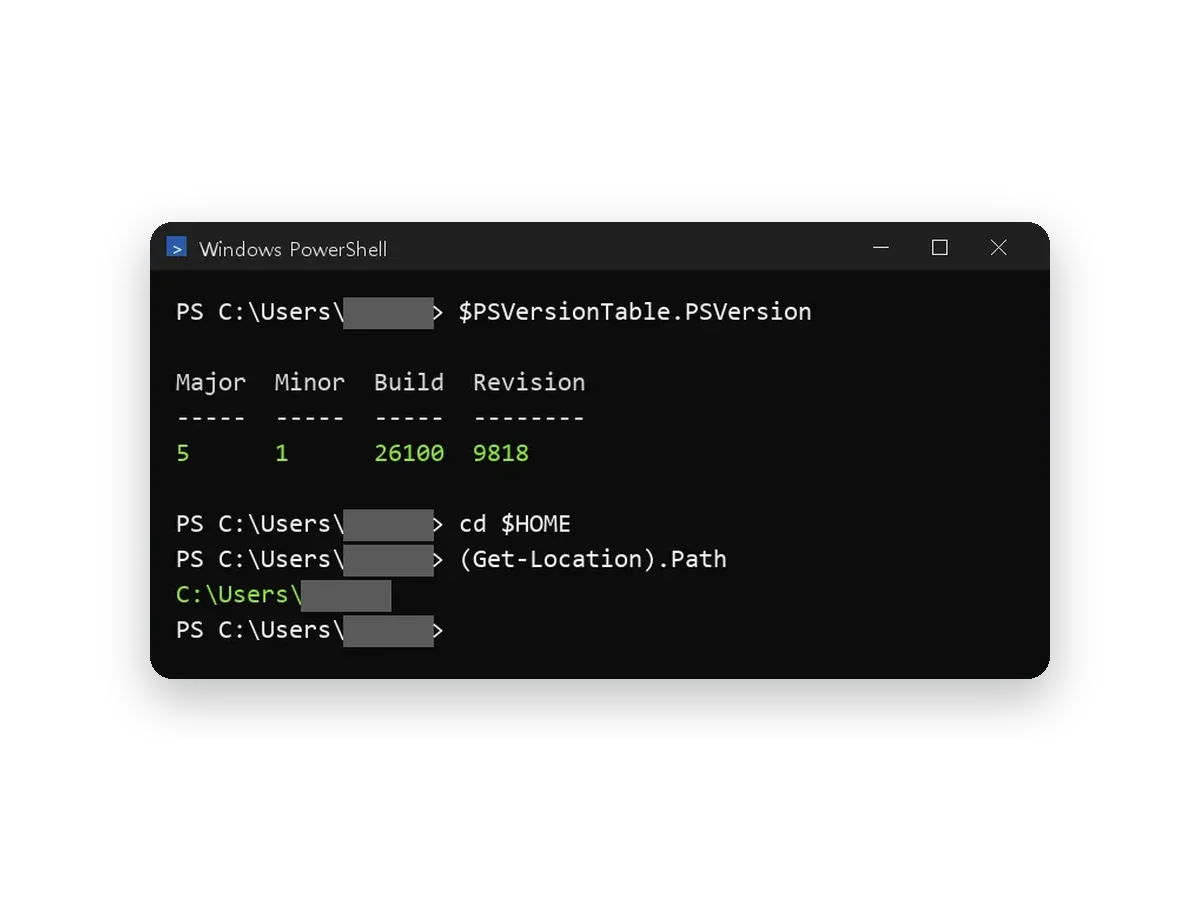
You see four columns, Major, Minor, Build and Revision, and the first two numbers are 5 and 1 (the top half of the picture in step 4). That is Windows PowerShell 5.1, the version built into Windows and the one this series is written for.
When a block holds several lines, paste and run them one line at a time. You see the result of each line, so if something breaks you know exactly where.
Step 4: Find your user folder and read a path
A path is a folder's address: folder names joined by \. For example, $HOME\harness means "the harness folder inside my user folder". $HOME is a name PowerShell fills with your own user folder, so the same command works for everyone even though the real folder names differ.
Paste this and press Enter.
cdmoves you into another folder.cd $HOMEPrint the folder you are in now.
(Get-Location).PathAfter the commands from steps 3 and 4, the window looks like this.
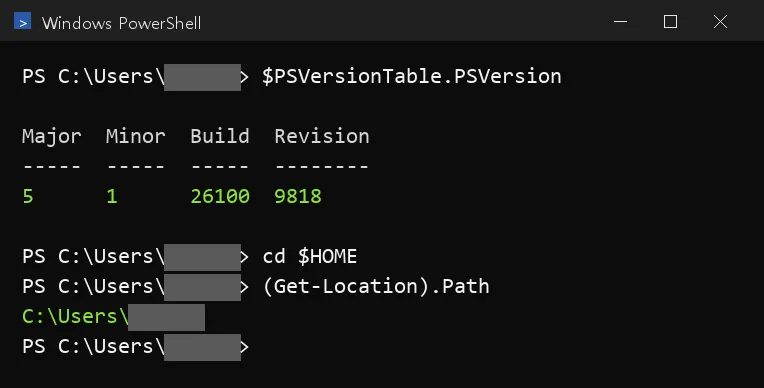
A fresh Windows PowerShell window on the PC this series was written on, 2026-11-12, with the commands from steps 3 and 4 typed in order. The green line at the bottom is your user folder path, and PS at the start of each line shows it is PowerShell.
It worked if
One line under the last command shows your user folder's path. The path after PS in the prompt points to the same folder.
Every file this series creates lives in $HOME\harness. You create that folder with a command in part 4.
Step 5: Know when you need an admin window
An admin window is a PowerShell window allowed to change settings for the whole PC. A mistake there reaches further, so open one only when a step asks for it. Installing Claude Code does not need one; the official docs say you do not need to run as Administrator.
Admin rights
The only place in this series where you open an admin window is the WSL install in part 5. There you right-click PowerShell in the Start menu and choose Run as administrator. Every other command goes into a normal window.
If you get stuck
| If you see | Why | Do this |
|---|---|---|
No PS at the start of the line | You opened CMD (Command Prompt) | Close it and open Windows PowerShell as in step 2 |
Claude Code does not support 32-bit Windows | You opened the (x86) entry | Open Windows PowerShell without (x86) |
| Red text under your command | The command ended in an error, often because only part of it was copied | Copy the whole line again and paste one line at a time |
FAQ
Can I follow this series in CMD instead?
The series is written for PowerShell. Claude Code has a separate CMD install command, but the kit in this series is a set of PowerShell scripts, so you need a PowerShell window.
Do I always have to open PowerShell as administrator?
Installing Claude Code and every job in this series run in a normal window. The only place in this series where you open an admin window is the WSL install in part 5.
As of 2026-11-12. Claude Code setup docs, Docker Desktop for Windows install docs and Microsoft's WSL install docs (checked 2026-11-11), plus PowerShell output run on the PC this series was written on.
This note is written from values SugarMount measured itself; an AI coding agent was used to draft it.