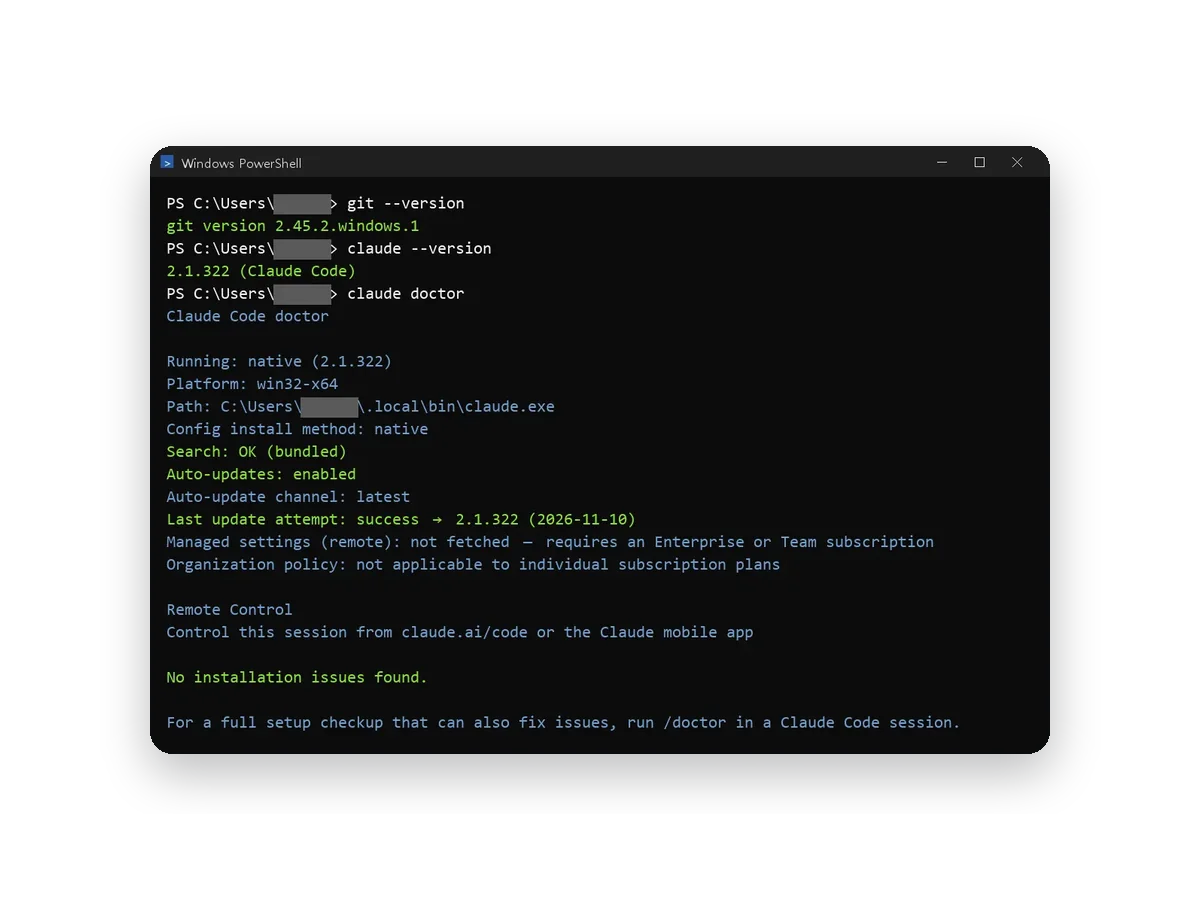
Install Claude Code on Windows: Git to first run
Claude Code installs on Windows with one line pasted into PowerShell, and it does not need an administrator window. Install Git from its official download page first.
Windows harness series, part 3 of 11 Previous Before you start: PowerShell Next Log in and ask a first unattended question
This part installs two programs. Claude Code is the AI program that does the work in this series. Git for Windows brings along a tool Claude Code uses to run commands. When both are in, a fresh PowerShell window prints their version numbers.
Use the Windows PowerShell window from part 2, and copy and paste commands the same way.
When you finish this part
- Result: in a new PowerShell window,
git --versionandclaude --versionprint versions, andclaude doctorreportsNo installation issues found. - You need: part 2 (opening PowerShell), Windows 10 1809 or later, an internet connection, 4 GB of RAM or more
- Cost: nothing to pay in this part. To use Claude Code you sign in with a paid plan in part 4; the free plan does not include Claude Code.
Contents (7)
Step 1: Download Git for Windows
Git for Windows installs Git Bash, a command shell. When Git Bash is present, Claude Code runs commands through its Bash tool; without it, Claude Code falls back to its PowerShell tool. The official docs call Git recommended, not required. This series installs it so that every reader follows the same path.
Open the official Git for Windows download page in your browser: https://git-scm.com/install/windows
Under the Windows tab, click Click here to download in the first line.
If your PC has an ARM64 processor, click Git for Windows/ARM64 Setup. instead.
It worked if
Your browser downloads an installer. On 2026-11-11 the link pointed to Git-2.56.1-64-bit.exe; the number follows whatever the latest release is on the day you download.
Step 2: Install Git and check it
The installer offers several choices, and none of them needs changing for this series. The download page does not walk through those screens, so this guide does not describe them one by one either.
Run the installer you downloaded. You'll find it in your browser's downloads list or in your Downloads folder.
If a Windows confirmation box (User Account Control) appears, click Yes.
Leave the settings as they are and click
Nextthrough the screens, thenInstall. When it finishes, clickFinish.Close any PowerShell window you already had open and open Windows PowerShell again, as in part 2. A window opened before the install may not find the new program.
Run this command.
git --version
It worked if
You get a line that starts with git version. On the PC this series was written on it read git version 2.45.2.windows.1; a fresh download shows a higher number.
Step 3: Run the Claude Code install command
Installing Claude Code takes one line in PowerShell. The command comes from the official setup page: https://code.claude.com/docs/en/setup
Open a Windows PowerShell window. It does not have to be an admin window; the official docs say you do not need to run as Administrator.
Copy the command below, paste it, and press Enter. It is the same command as in the box under Windows PowerShell: on the official page; scroll down the page a little to see that box.
irm https://claude.ai/install.ps1 | iexWait. The official docs say the command shows no progress while it downloads Claude Code. Leave the window open even if it looks stuck.
The first half, irm, fetches the install script from the internet, and the second half, iex, runs what was fetched. That is why you paste the whole line, including iex.
It worked if
The command finishes and a new prompt line starting with PS appears. If the output mentions Setup notes:, do step 4 and then step 5 as well.
Step 4: Check the install in a new window
The window you installed from may not find the claude command yet. The official docs also tell you to open a new terminal window before checking.
Close PowerShell and open Windows PowerShell again.
Check the version.
claude --versionRun the diagnostics.
claude doctordoes not start a session; it only reads and reports the state of the install and your settings.claude doctor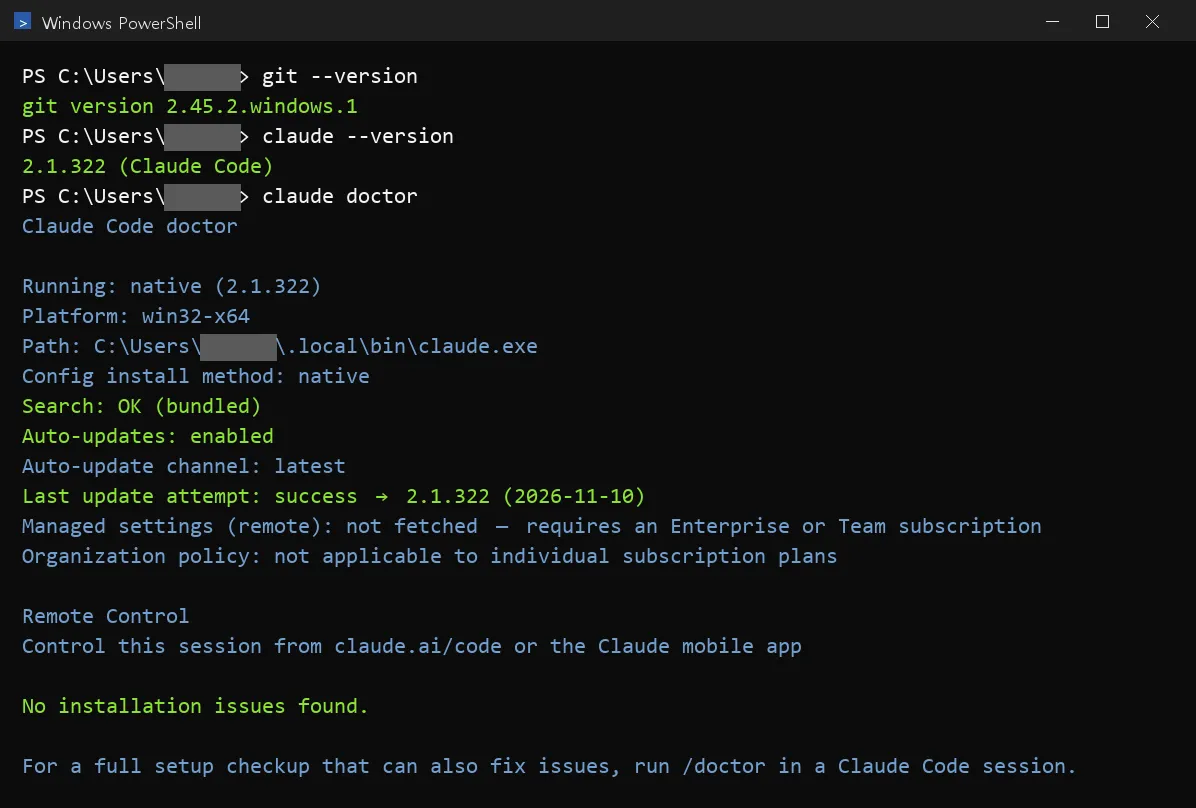
Real output from the PC this series was written on, 2026-11-12. No installation issues found. near the bottom means the install is healthy.
It worked if
claude --version prints a number followed by (Claude Code), like 2.1.322 (Claude Code), and the claude doctor output includes No installation issues found.
Three lines in claude doctor are worth reading. Running: native means Claude Code was installed the officially recommended way. Path: shows where claude.exe lives: the .local\bin folder inside your user folder. Auto-updates: enabled means updates are on. A native install downloads updates in the background, and the new version takes effect the next time you start Claude Code.
A line starting Managed settings (remote): not fetched is normal on a personal plan. The line right below it, Organization policy: not applicable to individual subscription plans, says why: company-managed settings do not apply to individual plans, so nothing was fetched.
Step 5: Fix PATH if you saw Setup notes
Do this step only if the step 3 output showed Setup notes: with a sentence ending in .local\bin is not in your PATH. Otherwise skip it.
PATH is the list of folders Windows searches when you type a program's name. It is stored as a per-user setting called an environment variable. The installer does not edit that list itself; it only prints the warning and the fix.
Paste these two lines one at a time, pressing Enter after each. The first reads your current list; the second adds the Claude Code folder to the end and saves it.
$currentPath = [Environment]::GetEnvironmentVariable('PATH', 'User')
[Environment]::SetEnvironmentVariable('PATH', "$currentPath;$env:USERPROFILE\.local\bin", 'User')
Close PowerShell and open a new window. The change only applies to windows opened afterwards.
Run
claude --versionagain.
It worked if
As in step 4, the version number is followed by (Claude Code).
If you get stuck
| If you see | Why | Do this |
|---|---|---|
'irm' is not recognized as an internal or external command | You pasted into CMD | Paste it into a Windows PowerShell window |
The token '&&' is not a valid statement separator | You pasted the CMD command into PowerShell | Use the irm command from step 3 |
A message containing The term 'claude' is not recognized | The window predates the install, or the folder is missing from PATH | Try a new window; if it persists, do step 5 |
Claude Code does not support 32-bit Windows | You opened the (x86) PowerShell | Open Windows PowerShell without (x86) |
A message ending in because it is being used by another process | Another process is holding the install files | Run Remove-Item -Recurse -Force "$env:USERPROFILE\.claude\downloads", then repeat step 3 |
| Script text scrolls past and nothing installs | The | iex part at the end of the line was missing | Paste the whole line again: irm https://claude.ai/install.ps1 | iex |
FAQ
Can I install Claude Code without Git?
Without Git for Windows, Claude Code still installs and runs commands through its PowerShell tool instead of the Bash tool. This series installs Git so that everyone follows the same steps.
Can I install it with winget instead?
The official docs list winget install Anthropic.ClaudeCode too, but a winget install does not update itself; you have to run winget upgrade Anthropic.ClaudeCode now and then. This series uses the step 3 method, which updates automatically.
Do I need to open PowerShell as administrator?
The Claude Code docs say you run the install command from PowerShell or CMD and do not need to run as Administrator.
As of 2026-11-12. The official Git for Windows download page, Claude Code setup and install troubleshooting docs (checked 2026-11-11), and output run on the PC this series was written on.
This note is written from values SugarMount measured itself; an AI coding agent was used to draft it.