GA4 CSV export to a daily morning report
Put a CSV you downloaded from GA4 into the data\ga4 folder, and every morning at 09:30 the ga4-daily job reads that one file and writes a short report for you to check.
Windows harness series, part 8 of 11 Previous Schedule it to run every day Next Ad budget checks and approvals
This part turns a GA4 (Google Analytics 4) report into a morning briefing. You download the report as a CSV file, and the kit's ga4-daily job reads it on a schedule. The job never signs in to GA4. It only reads the file you hand it, so the harness holds no GA4 login and no secret.
You keep using the $HOME\harness folder from part 6 and the scheduling command from part 7.
What you will have
- Result: a GA4 morning report appears in the
reportsfolder every day at 09:30. - You need: a PC that finished part 7, and a GA4 role that can export reports (step 1).
- Cost: nothing new. The job runs on the Claude plan you signed in with in part 4.
Contents (8)
Step 1: Download a GA4 report as CSV
The menu names below are quoted from Google's English help page.
Open https://analytics.google.com in your browser and sign in.
Click Reports in the left menu and open the report you want.
Click Share this report at the top right of the report.
Click Download File.
Choose Download CSV. The same list offers Download PDF and Export to Google Sheets, but the kit reads only CSV files.
To export a report you need the Viewer role on the property (the GA4 container for one app's data).
Which report you download is up to you and your game. A report with a date (Date) on every row lets the job compare trends. If the columns differ from what the job expects, it says so first: the top of the report lists the "columns read" and any "missing columns", so the first run tells you whether your file works.
Step 2: Put the file in data\ga4
The job sorts the CSV names in data\ga4 alphabetically and reads only the last one. Put today's date at the front of the name and your file comes last.
Open the
data\ga4folder in File Explorer. From a PowerShell window, this line opens it:explorer $HOME\harness\data\ga4Move the downloaded CSV into this folder.
Add today's date to the front of its name, for example
2026-11-12-events.csv.
It worked if
data\ga4 holds your dated CSV. Leave 0000-practice-sample.csv (the fictional practice file) where it is: its name starts with 0000, so it sorts before any dated file and is read only when no dated file exists.
No GA4 file yet? Skip this step and try step 4 on the practice file first.
Step 3: Switch to the English prompt and read it
The kit was written for Korean readers, so each job card (the job definition file in the jobs folder) points to a Korean prompt by default. English prompts sit in prompts\en. Open the job card in Notepad.
cd $HOME\harness
notepad .\jobs\ga4-daily.json
Change the line "prompt": "prompts/ga4-daily.md", to "prompt": "prompts/en/ga4-daily.md", and save. Then open the English prompt.
notepad .\prompts\en\ga4-daily.md| Rule | What it means |
|---|---|
| One file only | Read the last CSV by name. If there is none, write No GA4 file: put a CSV in data/ga4 and Verdict: partial failure (no file). |
| Columns first | List the column names from the file's header row as "Columns read". If a needed column is missing, write "Missing columns: ..." and do only what the other columns allow. |
| Is it today's file? | On the practice file, start with "This report was run on the practice file" and give the verdict on the content, with no date rule. On any other file whose date is not today's, the verdict is partial failure (no file for today). |
| Only numbers in the file | Never invent a number, and mark any guessed cause with "(guess)". |
| Small samples as fractions | For a rate under 20 users, write the fraction too, like 75% = 6/8. A gap of one or two users counts as "about the same". |
"Level pass rate" is level_up users (cleared a level) divided by level_start users (started one). If the file is not split by level, the report says "all levels combined". If your game sends different event names, edit that line of the prompt.
The last line is always Verdict: done or Verdict: partial failure (reason). A state of ok only means the job ended without an error, so this line is where you see whether it did the work.
The job card allows two tools, Read and Glob (find files). The job cannot change any file.
Step 4: Run it and read the report
In a PowerShell window, enter these three lines one at a time. The second is the run-scripts line from part 6.
cd $HOME\harness
Set-ExecutionPolicy -Scope Process -ExecutionPolicy Bypass -Force
.\run-job.ps1 -Name ga4-daily
When it ends, the window prints one line starting with
끝:(Korean for "end") that showsstatus=ok exit=0andreports\latest-ga4-daily.md. Open that latest copy. The same report is also saved under a dated name inreports.notepad .\reports\latest-ga4-daily.mdRead it from the top.
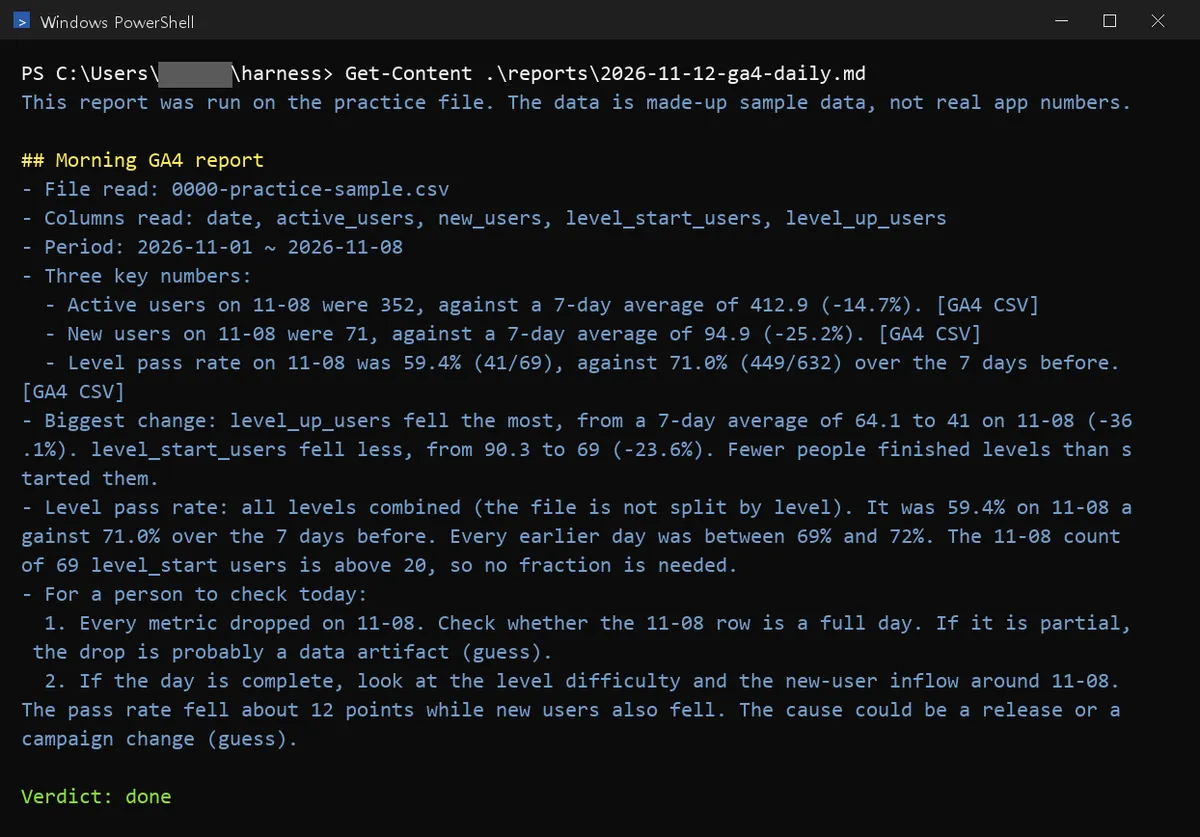
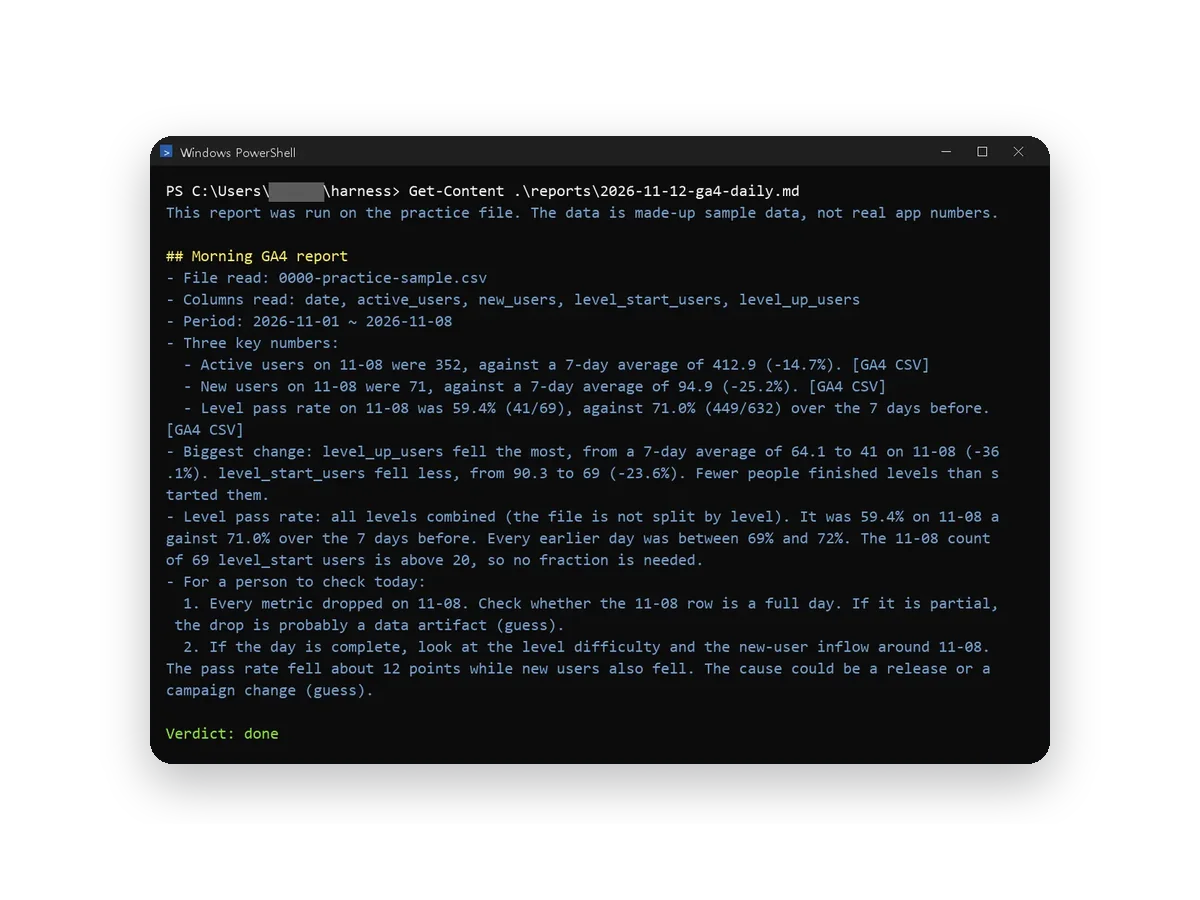
The whole report ga4-daily wrote with the English prompt from the fictional practice CSV (our PC, Nov 12, 2026, 13 seconds). Read it as practice notice and columns read, numbers, checks, then the verdict line.
Every number in the screenshot is fictional practice data. For the last day (Nov 8) the report picked 352 active users (-14.7% against the prior seven-day average), 71 new users (-25.2%) and a level pass rate of 59.4% (41/69) against 71.0% (449/632) for the seven days before. It named the drop in level-up users, from an average of 64.1 to 41 (-36.1%), as the biggest change, and it said the pass rate covers all levels combined. Its two checks for you, whether Nov 8 was a full day and whether a release or campaign change was behind the drop, both carried the "(guess)" tag. On the practice file there is no date rule, so the verdict was Verdict: done. We recomputed every number from the same CSV and all of them were correct. Still, check the arithmetic yourself for the first few runs.
We also tried a file with different columns, using the Korean prompt. It had only Event name, Event count, Total users and no date column, and we gave it today's date in its name. The report listed "missing columns: date column" and marked the trend comparison "cannot judge". It still worked out the level pass rate from the columns it had (61/88, about 69%), told the person to export again with a Date column, and ended with "partial failure (no date column)".
When the end line in the window adds a Korean note that a sign-in expiry notice appeared, open logs\ga4-daily.log. That notice (part 4) is not written into reports.
Step 5: Schedule it every day
The order part 11 recommends is to get a week of ga4-daily reports first, then switch on the other jobs one at a time. That is why this schedule comes first.
In the same window, schedule the job for 09:30 every day.
.\register-job.ps1 -Name ga4-daily -At 09:30Check it in the status table. Double-clicking
status.cmdin File Explorer shows the same table (part 7)..\status.ps1
It worked if
The ga4-daily row in the status table shows 09:30 as the next run.
From now on, drop a fresh CSV in before 09:30 each day. On Nov 12 we left only a file dated Nov 10 in the folder: the job read it and marked the verdict as partial failure because there was no file for today. The English prompt gave the same result on that file: Verdict: partial failure (no file for today). With a file dated Nov 12, the Korean prompt's verdict was done; we did not run that case with the English prompt.
Limits of this kit
You download the CSV by hand every day. We have not tested the kit on a file downloaded from a real GA4 screen. Instead, after the first run, the "columns read" and "missing columns" lines at the top of the report tell you right away whether your file works (we tested a file with different column names, step 4).
When you get stuck
| If you see | Why | Do this |
|---|---|---|
No GA4 file: put a CSV in data/ga4 and Verdict: partial failure (no file) | No CSV in the folder. | Redo step 2 and check the name ends in .csv. |
| "This report was run on the practice file" at the top | No CSV whose name starts with a date. | Check that your file's name starts with the date. |
partial failure (no file for today) | The last file's date is not today. | Add today's CSV and rerun the third line of step 4. |
| "Missing columns" naming a date column, and a partial failure verdict | Your report has no Date column. | Download a report with a date on every row. |
| The report is in Korean | The job card still points to the Korean prompt. | Redo the job card change in step 3. |
| Level pass rate says "column missing" | Your file has no level_start or level_up user columns. | Edit that prompt line to match your column names. |
In the real harness
Our own harness does not download CSVs by hand. A data collector server, running in Docker, gathers the previous day's numbers into a snapshot file at 09:00 every day, and the game's daily job reads that snapshot. On Oct 11, its first day, the scheduled runs failed because no Google credentials had been set up; after credentials went in, every scheduled run from Oct 12 succeeded.
Once the label was wrong rather than the number. In an approval request the harness called a ratio the "first-level solve rate". It actually came from a per-version event query with no level ID: users who finished three tutorial levels, out of users who launched the game for the first time. The report body stated both numbers correctly, but the label was wrong, and the harness read the existing record in the repository without comparing the two. Just as the kit's report adds "all levels combined" to its pass rate, every number needs to say what it counted.
Real reports also tag each number with its source, such as [GA4] or [AdMob API], the same way as the kit's [GA4 CSV]. The filter we use to drop test devices is written up in GA4 installs: 11 of 19 were test devices.
FAQ
Can the job pull GA4 numbers automatically?
Not in this kit. It reads only a CSV you downloaded, so the harness never gets GA4 access. Our real harness uses a data collector server at 09:00 every day, but building that server is outside this series.
What are the menu names in another GA4 display language?
We did not check. Reports, Share this report, Download File and Download CSV are the names in Google's English help page. In another language, follow the same order: report, share, file, CSV.
As of Nov 12, 2026. Google Analytics Help: share and export reports (checked Nov 11, 2026), output of the kit run on our PC (fictional practice data, date-rule tests and a file with different column names), harness run logs and data collector run logs.
This note is written from values SugarMount measured itself; an AI coding agent was used to draft it.