Run a first Claude Code harness job with the kit
Unzip the kit into your harness folder and run hello once with run-job.ps1. You get a log, a report and a state file, and you see each one before anything is scheduled.
Windows harness series, part 6 of 11 Previous Install Docker Desktop Next Schedule it to run every day
In this part you download a small practice kit from SugarMount and run one job by hand. The kit is a zip file with four PowerShell scripts (text files of commands ending in .ps1), job cards (job definition files in the jobs folder), prompts and practice data. Part 7 schedules the job; first you see what one run leaves behind.
You keep using the harness folder and the dedicated settings folder for scheduled jobs (.claude-harness) from part 4. If you skipped Docker in part 5, that is fine.
When you finish this part
- Result: the hello job runs once and leaves records in the
logs,reportsandstatefolders. - You need: a PC that has finished part 4 (Claude Code installed, signed in to the dedicated settings folder).
- Cost: the kit is free. Runs use the Claude plan you signed in with in part 4.
Contents (8)
Step 1: Download the kit
The kit is one zip file, harness-kit.zip. Pick one of the two methods below.
Method 1: from the browser
Click download harness-kit.zip. If it was saved somewhere other than your Downloads folder, move it there.
Method 2: from PowerShell
Paste this line and press Enter.
Invoke-WebRequest https://sugarmount21.com/assets/ax/harness-kit.zip -OutFile "$HOME\Downloads\harness-kit.zip"Check the file
Whichever method you used, check that the file is there.
dir $HOME\Downloads\harness-kit.zipYou are done when
One line appears with harness-kit.zip in the Name column.
Step 2: Unzip the kit
Unzip with a PowerShell command, not File Explorer. We checked that this command gives all 24 files and keeps the Korean text inside the scripts intact.
Paste this line. It unzips into the
$HOME\harnessfolder you made in part 4.Expand-Archive -Path "$HOME\Downloads\harness-kit.zip" -DestinationPath "$HOME\harness" -ForceGo into that folder and list it, one line at a time.
cd $HOME\harness
dir
To see the same folder in a File Explorer window, enter this line. Parts 8 and 9 use the same trick when you drop data files in.
explorer $HOME\harness
You are done when
You see three folders (data, jobs, prompts) and six files (README.txt, four .ps1 scripts and status.cmd).
| Name | What it does |
|---|---|
run-job.ps1 | Runs one job. We call it the runner (this part). |
register-job.ps1, remove-job.ps1 | Schedule a job daily at a fixed time, and remove it (part 7). |
status.ps1, status.cmd | Show each job's last result and next scheduled run in a status table (part 7). |
jobs, prompts | Four job cards (hello, ga4-daily, ads-check, shorts-plan) and their prompts. English prompts are in prompts\en. |
data | Made-up practice data: GA4 and ads CSV files, a game description |
The kit is written for Korean readers. The runner's closing line, the log lines it adds and the status table headings are in Korean; this page translates each one where it appears. The default prompts are Korean too, so Claude answers in Korean unless you switch to the English prompts (step 3).
Step 3: Read a job card
A job card says what to ask, which model to use and how many seconds to allow. Open the hello card in Notepad with notepad .\jobs\hello.json:
{
  "description": "동작 확인용 작업",
  "prompt": "prompts/hello.md",
  "model": "haiku",
  "allowedTools": [],
  "configDir": "~/.claude-harness",
  "timeoutSeconds": 300
}| Field | Meaning |
|---|---|
| description | A note for people ("a job to check that things work"). The runner ignores it. |
| prompt | The prompt file. For hello it says: use no tools, name in one line the three numbers a game marketer should check first each morning, and end with a verdict line. |
| model | A Claude model alias. The other three jobs use sonnet. |
| allowedTools | The tools the job may use. An unattended run can only use tools on this list (part 4). hello needs none, so the list is empty. |
| configDir | The folder whose sign-in the job uses. ~ means your user folder; this points at the dedicated settings folder you signed in to in part 4, step 4. |
| timeoutSeconds | A time limit in seconds. After 300 seconds (5 minutes) the runner stops the job. |
To get English answers, change the prompt line to "prompt": "prompts/en/hello.md", and save. The same works for the other three jobs (prompts/en/ga4-daily.md and so on). We ran all four English prompts on Nov 12, 2026; each finished ok and wrote an English report.
The runner reads the card and works in this order. The comment lines in run-job.ps1 (lines starting with #) carry the same numbers.
- If the same job is still running, end without running it.
- Tell Claude to use the sign-in in the configDir folder.
- Start
claude -p --model haikuand feed it the prompt file as input. - If the time limit passes, stop claude and every program it started, and record a timeout.
- Write the answer to the log, and only when the result is ok, write a report too: a dated file plus a copy called
latest-hello.md. - Save the last result in a state file.
- Print one closing line on screen that starts with
끝:("done").
Step 4: Allow scripts in this window only
Windows PowerShell blocks .ps1 scripts according to a rule called the execution policy. Microsoft's documentation says the default on Windows client PCs is Restricted, which blocks scripts. When we tried different settings on our PC, we saw two different errors, both in English:
- A message containing
running scripts is disabled on this systemmeans scripts are switched off (the Restricted setting). - A message containing
is not digitally signedmeans the file came from the internet and was blocked (RemoteSigned). When we unzipped with File Explorer, every file got that internet mark.
In the window where you will run the kit, paste this line and press Enter. If the next prompt appears with no message, it worked.
Set-ExecutionPolicy -Scope Process -ExecutionPolicy Bypass -Force
What this line changes
-Scope Process means "this window only". Microsoft's documentation puts it the same way: it affects only the current PowerShell session and is lost when the session is closed. Paste it again in each new window. In a window with this line, the kit scripts ran without being blocked, so only run scripts you know, like the kit, in that window.
Step 5: Run hello and read the result
Stay in the same window. A few seconds after you start the job, one line beginning with 끝: appears.
Run the hello job.
.\run-job.ps1 -Name helloOpen the log.
Get-Content .\logs\hello.logSee what landed in the reports folder.
dir .\reports -Name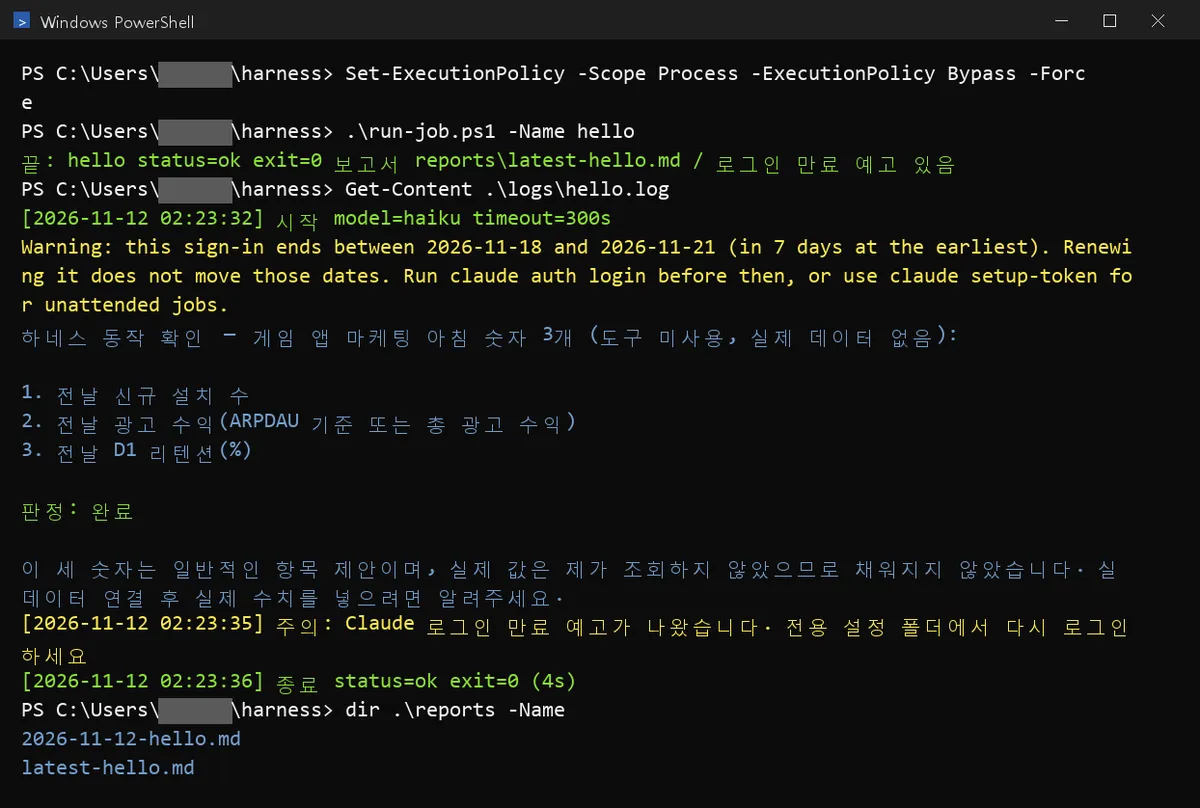
A freshly unzipped kit run in a new window that started out Restricted, Nov 12, 2026 at 02:23. The kit prints its own lines in Korean on our Korean-language Windows PC; there is no English version of this screen. Read it top to bottom: closing line, log, reports folder. Korean words: 끝 = done, 보고서 = report, 로그인 만료 예고 있음 = sign-in expiry warning seen, 시작 = start, 판정: 완료 = verdict: done, 주의 = notice, 종료 = end. Open the report in Notepad.
latest-hello.mdis a copy of the newest report, so you can open it without knowing the date.notepad .\reports\latest-hello.md
The 끝: line gives the job name, the result (status), the exit code (exit) and where the report is. The exit code is the number a program leaves when it ends; 0 means it finished without an error (part 4). If the line ends with / 로그인 만료 예고 있음, a sign-in expiry warning was seen. Read the log from the top:
시작 model=haiku timeout=300s: the runner's start line.Warning: this sign-in ends between ...: Claude Code's notice that the sign-in will expire. It is the same warning as in part 4, step 5: sign in again in the dedicated settings folder before the first date shown. It stays in the log and is left out of the report.- The answer and
판정: 완료(verdict: done): Claude's reply to the prompt. The prompt asks for the verdict on the last line, but in this run one more paragraph followed it. The wording and shape of the answer change on every run. 주의: Claude 로그인 만료 예고가 나왔습니다. 전용 설정 폴더에서 다시 로그인하세요: the runner found the warning and adds "sign-in expiry warning seen; sign in again in the dedicated settings folder". With no warning, this line does not appear.종료 status=ok exit=0 (4s): the result, exit code and time taken (4 seconds).
The state file state\hello.json keeps only the last result; the status table in part 7 (the table status.ps1 shows) reads it. This is what a hello run at 02:18 the same day left:
{
    "status":  "ok",
    "loginWarning":  true,
    "finishedAt":  "2026-11-12T02:18:45",
    "exitCode":  0,
    "job":  "hello"
}
Step 6: Try the time limit (optional)
Shorten the limit on purpose to see that it really works.
Open the card with
notepad .\jobs\hello.json, change300to3and save. Leave everything else as it is.Run hello again and look at only the last three lines of the log.
.\run-job.ps1 -Name hello
Get-Content .\logs\hello.log -Tail 3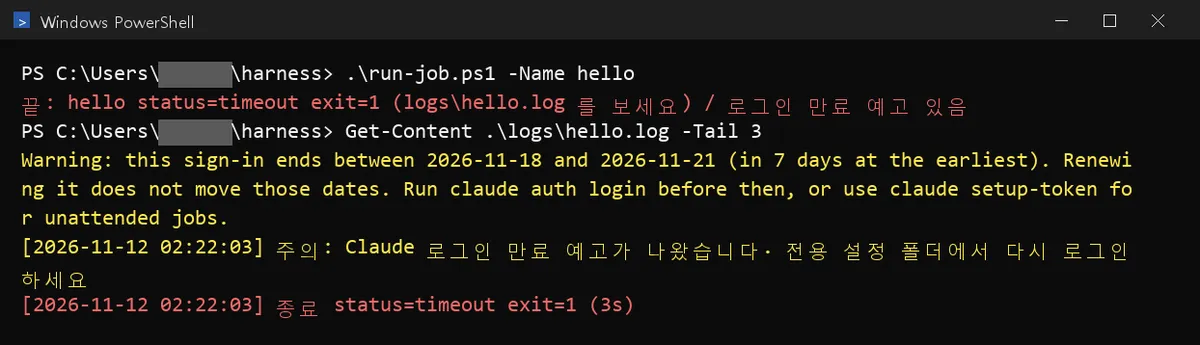
Nov 12, 2026 at 02:22, with hello's limit set to 3 seconds. A red closing line that says see the log (logs\hello.log 를 보세요) instead of naming a report means the limit worked. The kit's lines are in Korean: 끝 = done, 주의 = notice, 종료 = end. When you are done, change
3back to300and save.
It worked if
The 끝: line shows status=timeout exit=1 in red, and the last log line is 종료 status=timeout exit=1 (3s). Because the result is not ok, no report is written, and the report from step 5 stays as it was.
If you get stuck
| If you see | Why | Do this |
|---|---|---|
running scripts is disabled on this system or is not digitally signed | Scripts are blocked in this window. | Paste the step 4 line in the same window and run again. |
The prompt returns with no 끝: line | The same job was still running, so this run was skipped. The log gets a Korean line saying so. | Run again after the earlier run ends. |
The 끝: line has status=error | Claude ended with an error. Failures inside the run, such as a missing sign-in, are printed in the log where the answer would be. | Read the log; for a sign-in problem, redo part 4, step 4. |
The 끝: line ends in 로그인 만료 예고 있음 | The sign-in in the dedicated settings folder ends soon. | Sign in again before the date in the log's Warning line, as in part 4, step 5. |
FAQ
Do I have to paste the execution policy line in every new window?
A setting made with -Scope Process disappears when you close that window, so paste it once in each window where you run kit scripts by hand.
Do scheduled runs need that line too?
Scheduled runs work without it: the command that register-job.ps1 registers in part 7 already includes -ExecutionPolicy Bypass.
As of Nov 12, 2026. Output from running the published kit on our PC (Windows PowerShell 5.1, Claude Code 2.1.322; only the job card's configDir pointed at this PC's sign-in folder), Microsoft's execution policy documentation, and the Claude Code docs on non-interactive runs.
This note is written from values SugarMount measured itself; an AI coding agent was used to draft it.