Seven edited HWP files in Hancom's Android apps: 7 of 7 opened, and the re-save waited for a human sign-in
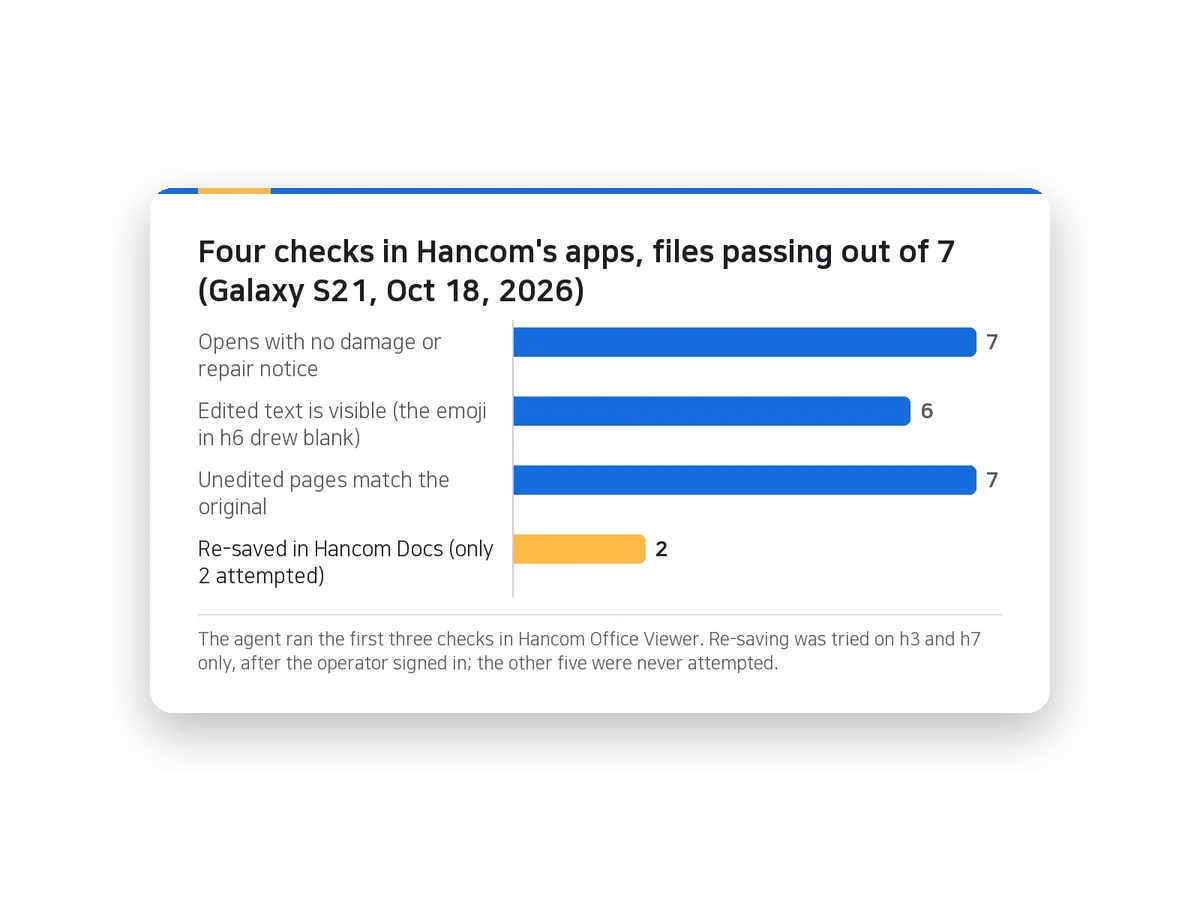
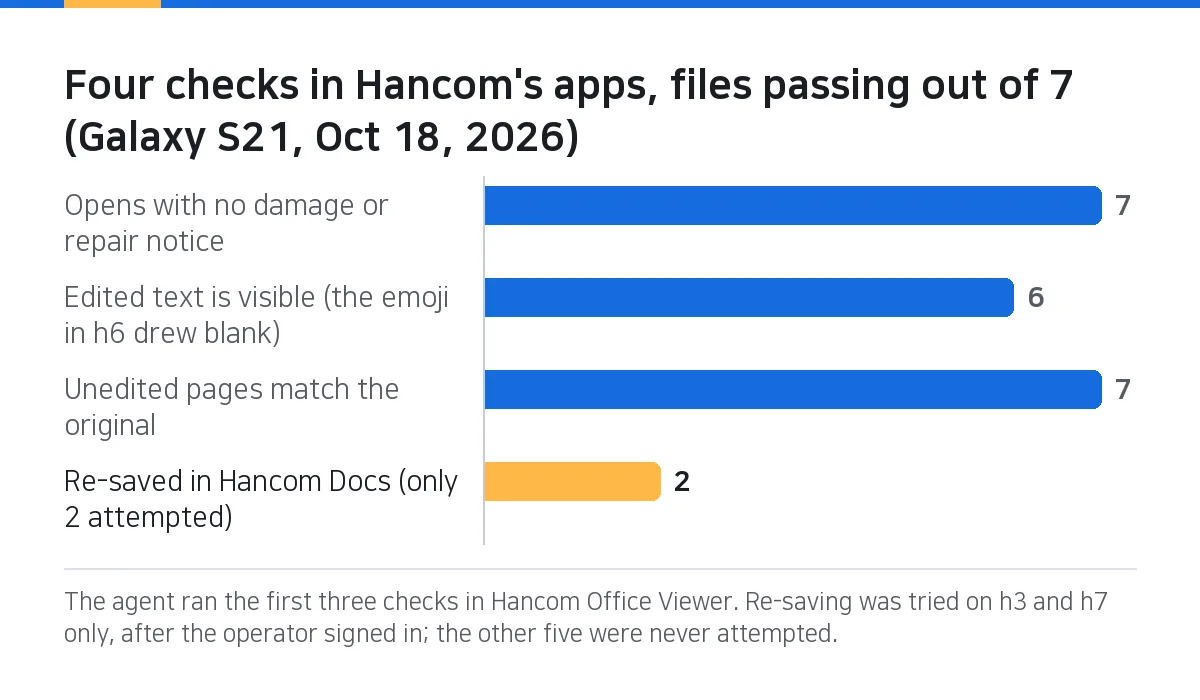
Seven HWP files edited by our app all opened in Hancom Office Viewer with no damage notice. Save As in Hancom Docs needed a human sign-in first; both files tried afterwards re-saved.
Building the SugarDoc HWP viewer 7/8
To check that HWP files your app edits still open and re-save in Hancom's own apps, open the original and the result through the same screens and compare them. The re-save step sits behind a Hancom Docs sign-in, though, so an AI agent cannot finish the check alone. On October 18, 2026, on a Galaxy S21 (Android 15), we opened seven HWP files edited with the code of our app HWP Viewer SugarDoc in the two Android apps from Hancom, the company behind the HWP format and the Hangul word processor. All seven opened with no damage notice and their unedited pages matched the originals; only an emoji drew as a blank. Re-saving was tried on two of them, h3 and h7, after the operator signed in, and both passed (171,008 B and 171,520 B).
Contents (9)
- Four pass criteria, and the agent could reach three
- The test files came from node, running the app's own edit code
- Eight screenshots per file, and h7 checked by eye
- The release conditions disagreed, and the re-save came after release
- Direct editor launch, pixel judging for h7, desktop Hangul: not used
- The pixel diff only aligns vertically, and the re-saved files were only reopened
- Running the same round trip for your own format
- Five files and the desktop word processor are still unchecked
- FAQ
Four pass criteria, and the agent could reach three
Before edit was switched on, the plan held a Hancom compatibility table. Each document gets the body and table-cell edits that apply to it, plus one file with the special characters < & > " ' and an emoji, and one long insertion that pushes text onto a new page. A file passes four checks: (1) it opens with no damage or repair notice, (2) the edited text is visible, (3) unedited pages match the original, (4) Hancom can save it again. Form-field filling had already been cut from the edit scope, for the reasons in We built an edit feature and shipped it switched off: the HWP save gate that caught a form-field bug, so the form-field column was dropped too.
The table started out as a job for a person. On October 18 the operator handed it to the agent, to run on the S21, and limited it to installing free apps: no payments, no sign-ins. The plan that the agent could finish the table alone broke on check 4. The agent installed Hancom Office Viewer (com.tf.thinkdroid.viewer) and Hancom Docs (com.hancom.docs.suite 2.0.15.544) from Play. Viewer had no save function. Hancom Docs could save, and its first screen asked for a sign-in. At 17:24 the agent took a screenshot of the sign-in screen and backed out.
The test files came from node, running the app's own edit code
The table calls for Korean text and an emoji. adb shell input text, the usual way to type into an app from a script, only takes ASCII, so driving SugarDoc's screen could not produce those files. The agent ran the edit code the app runs inside its WebView (pick a target, apply, export and reopen) in node, on the same pinned rhwp 0.8.6 engine (measured in Building an Android HWP viewer: rhwp in a WebView, measured on 222 documents). Each result then went through the app's Kotlin preview scrub and save gate; all seven passed. The on-device save path was covered separately that day by a device E2E run that typed ASCII markers.
The generator the agent wrote only picked text runs of two or more characters, and the form document had nothing but empty paragraphs and a form field, so h5 came back with no target (BODY:NONE). It has the same cause as the empty-paragraph case in the save gate note. The agent switched h5 to typing into an empty paragraph, rebuilt the set a minute later, and put the seven files and their originals into the S21's Download folder.
Eight screenshots per file, and h7 checked by eye
Sending an HWP to Viewer through a VIEW intent made Viewer ask for "All files access". The agent tapped "Later" and found another way in: Viewer's own Open button, which hands off to the system file picker and needs no such permission.
The comparison script opens the original and the edited file the same way, takes eight screenshots at the same scroll steps, and counts pixels whose grayscale difference is above 40. It also searches the screen's view tree for Korean words meaning damaged, repair, error, cannot open and not supported. The first two runs opened nothing, because the picker started in another folder; a step that walks into the folder fixed that. The same swipe does not stop at exactly the same place twice (4 to 16 px apart on files whose pages did not move), so the script slides the edited shot up or down by at most 70 px (staying clear of the status and tool bars) to the best match before counting. Screens with a nonzero count were turned into side-by-side images and reviewed.
| File | Edit | Pages | Screens with 0 diff | Where it differed |
|---|---|---|---|---|
| h1 | marker text after a body text run | 3→3 | 6/8 | the edited line and the next one reflowed |
| h2 | table cell text | 3→3 | 7/8 | that cell (1,164 px) |
| h3 | body and table cell | 1→1 | 0/8 | the two edits (4,037 px on each screen) |
| h4 | cell and body, document with a form field | 3→3 | 6/8 | the edits; the form field placeholder unchanged |
| h5 | text in an empty paragraph of a form | 1→1 | 0/8 | the new line (784 px); form objects unchanged |
| h6 | special characters and an emoji (U+1F600) | 3→3 | 6/8 | the edited line; characters shown, emoji blank |
| h7 | a sentence of about 480 characters | 1→2 | 0/8 | everything moved down a page |
h3 and h5 are one page long, so all eight screenshots show the same view and catch the same edit each time. No file produced a warning. Viewer also raised nothing about the preview streams, which the app replaces on save (PrvText with spaces, PrvImage with a blank image).
The emoji is still U+1F600 when rhwp reopens the file, yet Viewer drew it as a blank. We had no emoji document authored in Hancom's own software to compare with, so we do not know whether the font or the file is responsible. SugarDoc's edit sheet does not block emoji input.
The release conditions disagreed, and the re-save came after release
At 20:07 the 1.3.0 commit that turned edit on carried the first version of the QA document: open and display 7 of 7, re-save not checked. It asked the operator to try "Save As" on at least one result file (h3 and h7 suggested) on a signed-in device before release, and to switch edit off (flagEdit=false) if that failed. The agent left edit on because no file had failed; the coordinating agent session that received its report advised against production until the check was done. The operator approved the production release, and at 20:33 a commit recorded it with "Hancom re-save unverified". The release conditions also differed between documents: the plan listed all four checks and the production ban, while the decision table in the design document only blocked release if check 1 failed.
The agent does not type passwords or create accounts, so it asked the operator to sign in; at 20:57 the operator said the S21 was signed in to Hancom Docs. Hancom Docs then asked for "All files access", and the agent would not switch on a security permission itself. Its first directions pointed to the permission list on the app info screen, and the operator replied that the permission was not there. On this S21 it sat under special access in Settings. The agent opened that settings screen directly with an intent, and the operator switched it on at 21:01.
The first attempt to open the Hancom Docs editor showed Google Play's "app not recognized" screen (the app had been installed from Play). To see whether our file was the cause, the agent opened the unedited original of h3 the same way, through the file manager's "open with". The original opened in the editor, and the Play screen never came back. The record attributes it to a one-off check on Hancom's side; nobody confirmed the cause.
At 21:05 the edited h3 opened in the editor with no damage notice and both edits visible. "Save As" from the menu wrote resave_h3.hwp (171,008 B), which reopened with the same text and layout. h7 opened still pushed from one page to two; resave_h7.hwp (171,520 B) reopened with the two-page layout, table and logo unchanged. A commit recorded both at 21:10.
Do not call a file compatible because it opens. The bar is a re-save in the vendor's app, and if that step sits behind a sign-in, name the person who does that step in the table before the work starts.
Direct editor launch, pixel judging for h7, desktop Hangul: not used
Launching the Hancom Docs editor activity straight from adb would have skipped the file manager, but it was refused with not exported, so the agent went back to the file manager's "open with". In h7 everything moved down, and all eight screens still differed after alignment (168,496 to 221,626 px each), so we dropped the pixel count for that file and judged it from side-by-side images: the table and logo were intact and the text ran onto page 2. Checking in the desktop Hangul word processor was out from the start, because we had no copy to use.
The pixel diff only aligns vertically, and the re-saved files were only reopened
The comparison only aligns vertically. A different zoom level or horizontal offset is not corrected either, so those screens, like the page-shifted h7, need a person comparing them side by side.
Both re-saved files came out smaller than ours (both 235,520 B, from originals of 292,352 B). We never compared their records, so we do not know what went; reopening and reading the text and layout was the whole check. No Korean edit made through SugarDoc's WebView on a phone has been opened in Hancom's apps. Later on the same evening, after the test files were built, the released edit code stopped offering empty paragraphs without controls as edit targets. The paragraph h5 typed into holds one control (engine query), so that rule does not apply to it. One device (the S21, Android 15) and one Hancom Docs version (2.0.15.544) were used.
Running the same round trip for your own format
- Write the table first: one file per kind of edit (body, table cell, special characters, emoji, a long insertion that moves text to the next page, a form document), four checks each. Put a person's name in every cell that needs a sign-in or a special access permission.
- Build test files through the same code path as the app, and keep only those that pass the app's save gate. Put each original next to them with an
orig_prefix. - If the vendor app (made by the company behind the format, here Hancom) asks for broad permissions, look for its own Open menu and the system file picker first.
- Open original and result the same way, screenshot the same scroll steps, align vertically, count differing pixels. Look by eye at every nonzero screen and at any file whose pages moved.
- Search the view tree for warnings such as damage or repair notices.
- In the app that can save, use "Save As" to a new name, reopen it, check text and layout, and note the size.
- Mark anything you could not run as unchecked, and make sure every document that sets release conditions uses the same checks.
# apps that handle the format; the all-files access settings screen
adb shell cmd package query-activities --brief -a android.intent.action.VIEW \
  -t application/x-hwp -d content://media/external/downloads/1
adb shell am start -a android.settings.MANAGE_APP_ALL_FILES_ACCESS_PERMISSION \
  -d package:com.hancom.docs.suite

# differing pixels after vertical alignment (margins for a 1080x2400 S21,
# shortened from the session script)
from PIL import Image, ImageChops
def diff(a_png, b_png, top=300, bottom=330):
    A, B = Image.open(a_png).convert("L"), Image.open(b_png).convert("L")
    bot = A.height - bottom
    def count(dy, k=1):
        a = A.crop((0, top, A.width, bot))
        b = B.crop((0, top + dy, B.width, bot + dy))
        if k > 1:
            a = a.resize((a.width // k, a.height // k))
            b = b.resize((b.width // k, b.height // k))
        d = ImageChops.difference(a, b).point(lambda v: 1 if v > 40 else 0)
        return sum(d.getdata())
    ok = [d for d in range(-120, 121, 2)
          if top + d >= 230 and bot + d <= A.height - 260]
    dy = min(ok, key=lambda d: count(d, 4))
    return count(dy), dy
On the S21 the first command listed Hancom Docs and Viewer among the apps that open HWP.
Five files and the desktop word processor are still unchecked
h1, h2, h4, h5 and h6 have not been re-saved in Hancom Docs, and the repository shows no change through its October 29 commits. That set includes the emoji file h6 and h4, the document with a form field. Opening and saving in the desktop Hangul word processor, and the cause of the blank emoji, are also still open.
FAQ
Can Hancom Office Viewer save an HWP file under a new name?
Not the version we used on the S21 on October 18, 2026: it had no save function. We used "Save As" in the Hancom Docs editor after signing in.
Where is "All files access" for Hancom Docs on Android?
On our S21 (Android 15) it was not in the app's permission list but under special access in Settings. Over adb, am start -a android.settings.MANAGE_APP_ALL_FILES_ACCESS_PERMISSION -d package:com.hancom.docs.suite opens that screen directly.
Sources: the SugarDoc repository's Hancom compatibility QA document, 1.3.0 release record, plan and design documents, git history and that evening's work session log (as of October 31).
Hancom and HWP are trademarks of Hancom Inc. This note is not affiliated with or endorsed by Hancom Inc.
This note is written from values SugarMount measured itself; an AI coding agent was used to draft it.