Install Docker Desktop on Windows with WSL 2
You can skip this part: the kit from part 6 runs without Docker. Install it only if you want a helper program, such as a server that collects ad numbers every day, to run in a container.
Windows harness series, part 5 of 11 Previous Log in and ask a first unattended question Next Download the kit and run a first job
You can skip this part. The kit you use from part 6 on runs on Claude Code and PowerShell alone and never touches Docker.
Docker Desktop is a Windows app that runs programs in containers: self-contained bundles that run apart from the rest of your PC. You need it only to run something like a server that collects ad numbers every day, or an MCP server, which connects Claude Code to outside services such as GitHub, in a container.
What you will have
- Result:
docker run --rm hello-worldprintsHello from Docker! - You need: a PC that meets the table in step 1 (Windows Pro, Enterprise or Education) and an account that can use administrator rights
- Cost: free for personal use and small businesses (under 250 employees and under $10 million in annual revenue); larger companies need a paid subscription for professional use (Docker docs, checked Nov 11, 2026)
Contents (9)
Step 1: Check that your PC qualifies
These are the conditions Docker's documentation sets for an install on WSL 2. If your PC misses any of them, skip this part.
Press Win+R, type
winverand press Enter.Compare the edition (Pro, Home and so on) and build number in that window with the table below.
| Item | Docker's requirement |
|---|---|
| Windows 11 | 64-bit Pro, Enterprise or Education, 23H2 (build 22631) or later |
| Windows 10 | 64-bit Pro, Enterprise or Education, 22H2 (build 19045) |
| Memory | 8 GB RAM |
| Virtualization | Hardware virtualization turned on in BIOS/UEFI (your PC's firmware settings) |
| WSL | 2.1.5 or later (checked in step 2) |
Windows Home is not in this list (see the FAQ). The full requirements are in the System requirements section of Docker's install page.
Step 2: Install WSL from an administrator PowerShell
WSL (Windows Subsystem for Linux) runs Linux inside Windows. By default Docker Desktop runs its containers on WSL 2.
Click Start and type
PowerShell.Right-click Windows PowerShell in the results and choose "Run as administrator".
Enter the line below in the administrator window. It turns on the features WSL needs and installs Ubuntu, a Linux distribution.
wsl --installWhen it finishes, restart the PC.
When the Ubuntu window first opens after the restart, wait while it unpacks its files, then create a user name and password for Linux. The Linux password stays invisible while you type it.
Open an ordinary (non-administrator) PowerShell window and check the WSL version.
wsl --version
It worked if
The WSL version on the first line is 2.1.5 or later. On this PC, set to Korean, it read WSL 버전: 2.1.5.0 ("WSL version").
If wsl --install only prints help text, WSL is already installed. Run wsl --update in the same administrator window and check wsl --version again.
Note
This step uses administrator rights to install Windows features and restarts the PC. Save any open documents first.
Step 3: Download the Docker Desktop installer
Open Docker Desktop's Windows install page in your browser.
Click the blue "Docker Desktop for Windows - x86_64" button, the one for ordinary Intel and AMD PCs. On a PC with an Arm processor, click the third button, "Docker Desktop for Windows - Arm (Early Access)".
Your browser downloads
Docker Desktop Installer.exe.
Step 4: Install with WSL 2 and launch it
Double-click the downloaded
Docker Desktop Installer.exe.Leave the installation mode on per-user, which is selected by default. It installs and updates without administrator rights.
On the Configuration page, choose WSL 2 as the backend (what actually runs the containers). Version 4.97 and later list WSL 2 and Docker VMM (Beta) as options; older installers show a "Use WSL 2 instead of Hyper-V" checkbox instead.
When the installation finishes, click Close.
Docker Desktop does not start on its own after installing. Click Start, type
Dockerand open Docker Desktop from the results.Click Accept on the Docker Subscription Service Agreement. Docker Desktop will not run until you do.
You do not need to sign in to a Docker account (see the FAQ).
Note
Do not pick the all-users install; it asks for administrator rights. Turning on WSL 2 for the first time on a PC needs administrator rights once (Docker docs).
Step 5: Check it with hello-world
With Docker Desktop open, start a new ordinary PowerShell window.
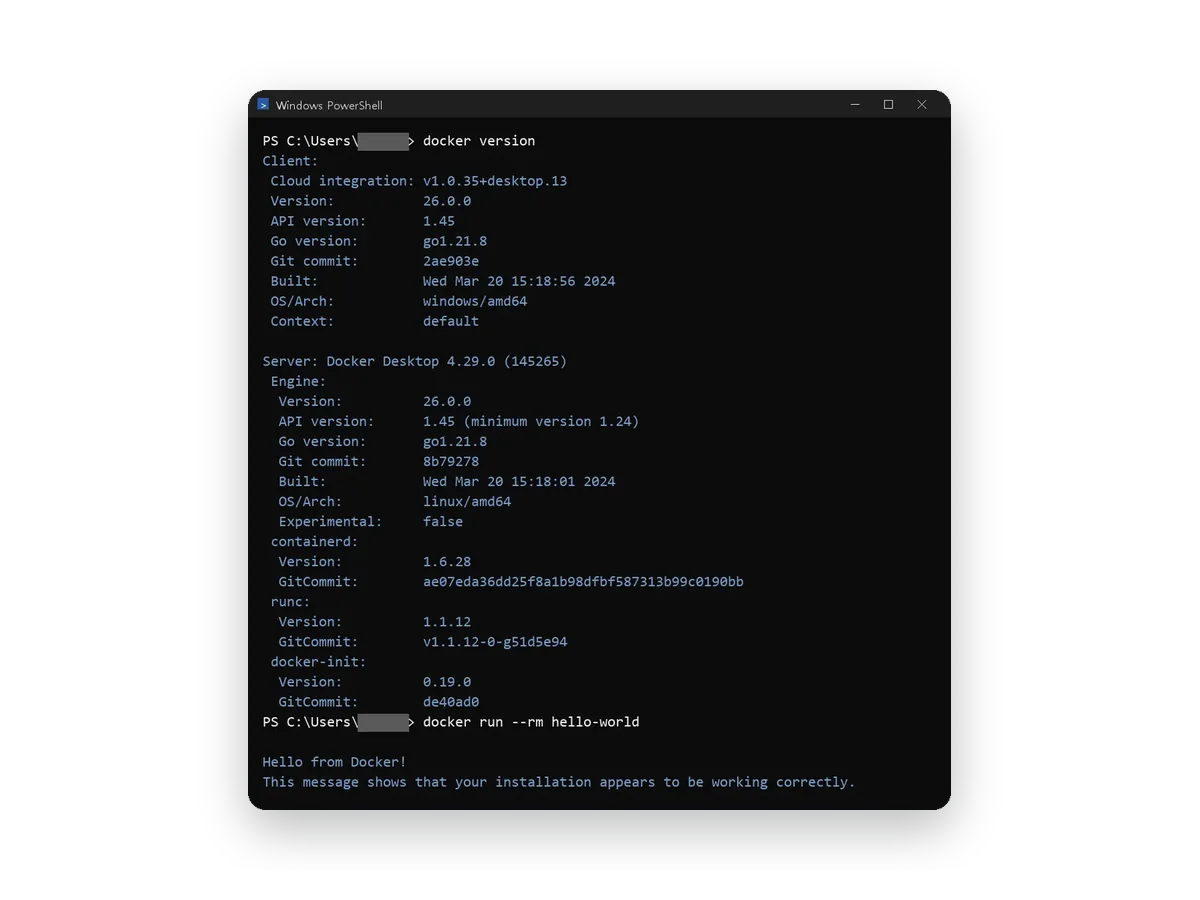
Check the version. You want both a Client section (the side that sends commands) and a Server section (the Docker engine).
docker versionRun a test container.
--rmdeletes the container when it finishes; the first run downloads the hello-world image (the template a container starts from) from the internet.docker run --rm hello-world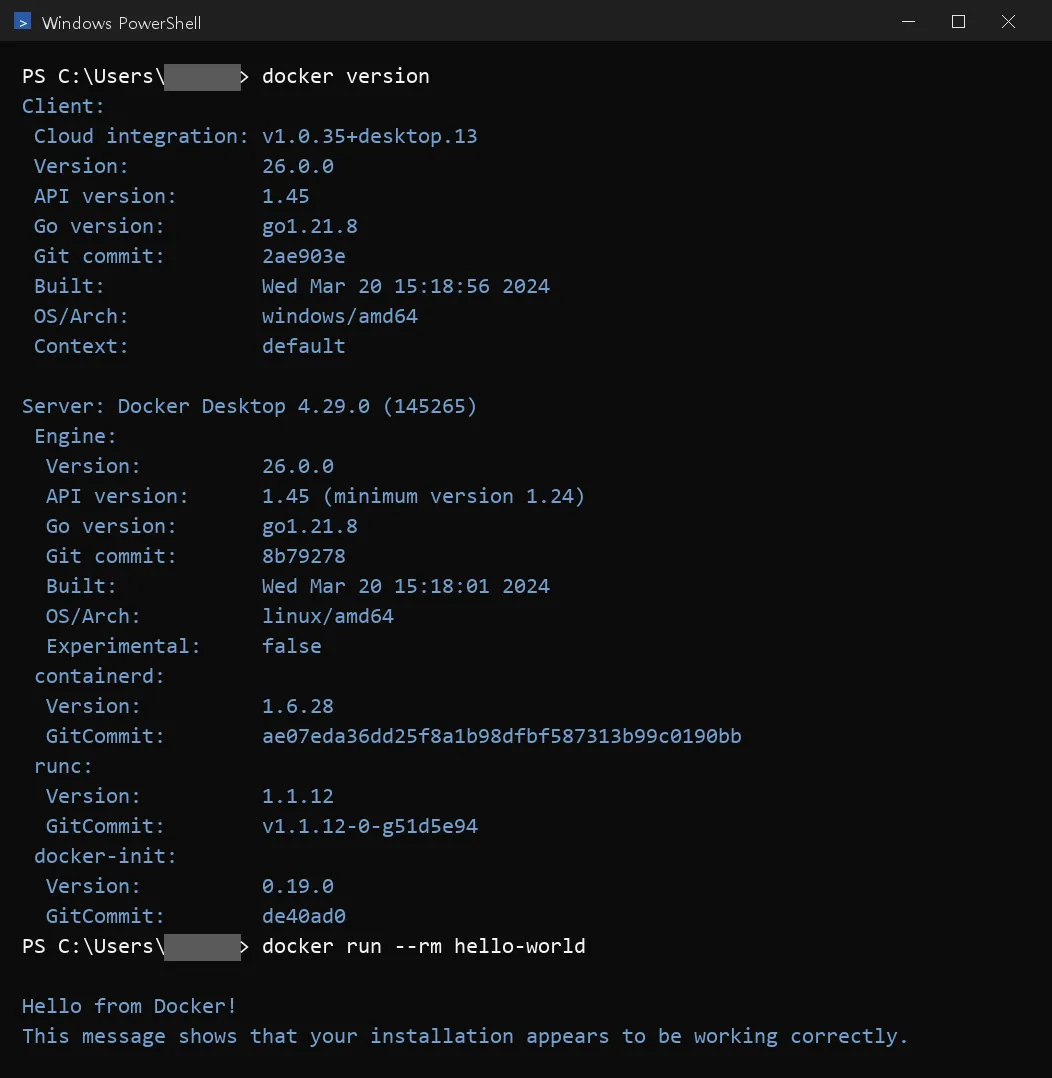
This PC, Nov 12, 2026: the two commands from this step. Seeing both a Client and a Server block means the engine is running, and Hello from Docker! at the bottom confirms the install. The version numbers are this PC's; a fresh install shows higher ones.
It worked if
You see Hello from Docker! and This message shows that your installation appears to be working correctly.
The hello-world check comes from Docker Engine's Linux install docs; Docker Desktop's own getting-started guide uses a different example, welcome-to-docker.
Step 6: Cap the memory (optional)
Docker Desktop runs on WSL 2, so a memory cap on WSL also caps Docker. Do this only if Docker has to share memory with other heavy work. The values below are the ones this PC has used since Oct 22, 2026.
In an ordinary PowerShell window, check whether a
.wslconfigsettings file already exists.Falsemeans go on;Truemeans a file is already there, so stop here rather than overwrite it.Test-Path "$HOME\.wslconfig"Create the file. This is a single line.
Set-Content -Path "$HOME\.wslconfig" -Value '[wsl2]','memory=3GB','processors=2','swap=1GB','[experimental]','autoMemoryReclaim=dropCache'Check the contents. You should see six lines.
Get-Content "$HOME\.wslconfig"Restart the PC. The settings apply the next time WSL starts.
According to the notes in this PC's settings file, memory is WSL's memory cap, processors the number of logical processors, swap a small spare space that keeps WSL from being killed when memory runs short, and autoMemoryReclaim=dropCache hands Linux's cache back to Windows while WSL is idle.
Do not run wsl --shutdown to stop WSL. It shuts down all of WSL, and the Docker engine and any running containers go down with it.
If you get stuck
| If you see this | Why | Do this |
|---|---|---|
wsl --version shows a WSL version below 2.1.5 | WSL is out of date | Run wsl --update in an administrator window |
| No "Use WSL 2 instead of Hyper-V" checkbox on the Configuration page | Since 4.97 the backends are a list of options | Pick WSL 2 from the list |
| No Hyper-V option on the Configuration page | Hyper-V is only offered in an all-users install | Pick WSL 2 |
In the real harness
SugarMount's harness uses Docker for two things. The first is a data-collection server. Every day at 09:00 Korea time it gathers the previous day's AdMob, GA4 and Google Ads numbers, and the game app's daily job reads them.
The second is GitHub's MCP server. Each Claude session starts its own container, and on the morning of Nov 11, 2026 seven were running, so count them when you check memory use.
The step 6 values fit this PC, which shares its memory with Android app builds. wsl --shutdown turns off all of WSL and takes Docker down with it, and wsl --unregister deletes a distribution along with its data. So the harness blocks both commands just before Claude can run them.
FAQ
Does Docker Desktop work on Windows 11 Home?
We have not tested it. Docker's requirements list only Pro, Enterprise and Education; Home appears only in the Windows containers note, which says Home can run Linux containers only. With nothing that settles it either way, this series does not recommend installing on Home. On Home, skip this part.
Do I need a Docker account?
By default you can use Docker Desktop without signing in. Signing in matters only for some features, such as pushing images to Docker Hub, Docker's image library.
As of Nov 12, 2026. Docker Desktop's Windows install and license documentation, Docker Engine's install documentation, Microsoft's WSL install documentation (all checked Nov 11), output from commands run on this PC (Nov 11 and 12), this PC's WSL settings file, harness operating records.
This note is written from values SugarMount measured itself; an AI coding agent was used to draft it.