Claude Code headless mode (-p): sign-in, first run
claude -p is Claude Code's headless mode: it answers one question and exits. You are done when scheduled jobs have their own sign-in and claude -p answers a question with exit code 0.
Windows harness series, part 4 of 11 Previous Install Git and Claude Code Next Install Docker Desktop
Claude Code, installed in part 3, does nothing until you sign in. In this part you sign in through your web browser, then try claude -p, which answers one question and exits without opening a chat screen. Finally you create a second sign-in, kept in its own folder, for the jobs you will schedule later.
Every command goes into the Windows PowerShell window from part 2. If claude --version printed a version number at the end of part 3, you are ready.
What you will have
- Result: an everyday sign-in and a separate sign-in for scheduled jobs, and
claude -panswering a question - You need: a PC that finished part 3, a paid Claude plan, a web browser
- Cost: on Claude's pricing page, Pro is $20 a month ($17 a month billed annually), Max $100 and Ultra $200 (as of Nov 11, 2026)
Contents (8)
Step 1: Make a work folder and sign in
Everything in this series lives in a harness folder inside your user folder. The first time Claude Code runs, it asks you to sign in through the browser.
Open a new Windows PowerShell window, paste the line below and press Enter. This creates the
harnessfolder.mkdir $HOME\harnessMove into it. If you are unsure where you are, type
(Get-Location).Pathfrom part 2 and check that the path ends inharness.cd $HOME\harnessStart Claude Code.
claudeOn the first-run screens, follow the text on screen. If one asks how you want to sign in, choose the option that signs in with your subscription (your Claude account).
A browser window opens; sign in with your Claude account. If no browser opens, press c in the PowerShell window to copy the sign-in address, then paste it into the browser's address bar.
If the browser shows a code after you sign in instead of returning, paste that code into PowerShell where it says
Paste code here if prompted. For anything else, follow the text on screen.
It worked if
PowerShell prints Login successful and asks you to press Enter. Your credentials are saved, so Claude Code will not ask again next time.
Step 2: Have one ordinary chat
Press Enter and follow any other text on screen. You then reach Claude Code's chat screen, where you type a question and read the answer.
Type a question and press Enter, for example
Explain the game-ad metric CPI in one sentence.Read the answer, then close the PowerShell window.
Step 3: Ask a first question with claude -p
With -p, Claude Code skips the chat screen: it answers one question and exits. The jobs you schedule in part 7 run this way.
Windows PowerShell 5.1 passes text to other programs using the encoding stored in $OutputEncoding, and the default is ASCII, which holds English letters only. The example below asks in Korean, so we switch to UTF-8 first. Do the same whenever a question contains non-English characters.
Open a new PowerShell window and go to the
harnessfolder.cd $HOME\harnessSet the encoding. Nothing is printed when it works. Enter this line again in every new window.
$OutputEncoding = [System.Text.Encoding]::UTF8Send the question.
echoprints the text, the vertical bar|(a pipe) hands that text toclaude -pas its input, and--model haikupicks the Haiku model. This is the exact command we ran; the Korean text asks the same CPI question as step 2.echo '게임 앱 광고 지표 CPI를 한 문장으로 설명해 줘.' | claude -p --model haikuCheck the exit code, the number a program leaves behind when it finishes. Claude Code exits with 0 on success and another number on failure. Failures such as a missing sign-in are also printed where the answer would be, so trust the number, not the text.
$LASTEXITCODE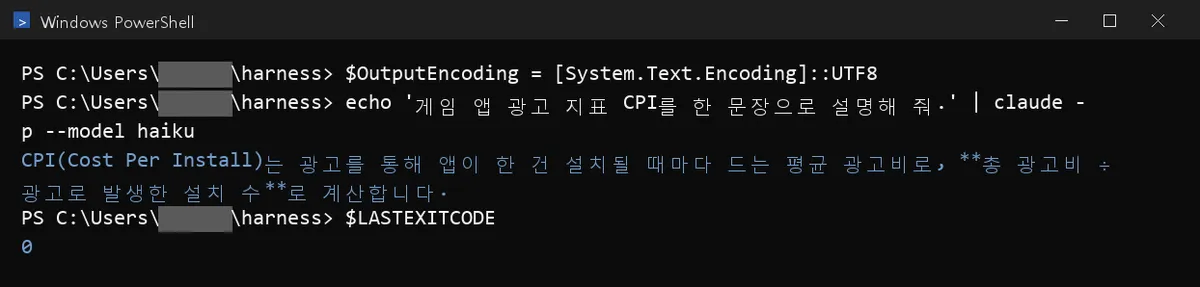
This PC, Nov 12, 2026: the three commands from this step typed in order. The question was in Korean and so is the one-sentence answer: CPI is total ad spend divided by the installs the ads brought in. The final 0 means success. The two asterisks are bold markers printed as plain text.
It worked if
An answer appears under the question and $LASTEXITCODE prints 0.
An unattended run can only use tools you allowed in advance. That list goes in the allowedTools field of the part 6 job card (a job definition file in the jobs folder).
Step 4: Give scheduled jobs their own sign-in
Claude Code keeps its settings, chat history and sign-in in one folder, .claude in your user folder by default. If you set the environment variable CLAUDE_CONFIG_DIR (a named value programs read when they start) to another folder, Claude Code keeps a separate sign-in and settings there. Sharing one folder means that switching accounts in a chat also switches the account your scheduled jobs use. So scheduled jobs get a dedicated settings folder of their own, .claude-harness.
Open a new PowerShell window.
Point Claude Code at the dedicated settings folder. The name
.claude-harnessmatches what the kit's job cards in part 6 expect.$env:CLAUDE_CONFIG_DIR = "$env:USERPROFILE\.claude-harness"Run Claude Code. The folder has no sign-in yet, so the browser sign-in from step 1 appears again. If it does not, type
/login.claudeWhen you see
Login successful, press Enter and close the window.Open a new window and check that the credentials file exists.
Test-Path "$env:USERPROFILE\.claude-harness\.credentials.json"
It worked if
It prints True. Per the Claude Code docs, on Windows the sign-in is stored in .credentials.json inside the settings folder.
Scheduled jobs follow the CLAUDE.md instructions file (rules Claude always applies) in the dedicated settings folder. Copy your chat instructions in unchanged and their answer format follows into job reports, so write job-specific instructions only when you need them.
Step 5: Find out when your sign-in ends
Sign-ins expire. This step has two halves: check the date now, and sign in again later, before that date.
Check now
In a new PowerShell window, enter the
$env:CLAUDE_CONFIG_DIRline from step 4 again. This window now uses the dedicated settings folder.Send a short question.
echo hi | claude -p --model haikuIf the answer starts with a line beginning
Warning: this sign-in ends, write the dates from that line in your calendar.
On Nov 12, 2026, a claude -p run with this PC's dedicated settings folder began its answer with this line:
Warning: this sign-in ends between 2026-11-18 and 2026-11-21 (in 7 days at the earliest). Renewing it does not move those dates. Run claude auth login before then, or use claude setup-token for unattended jobs.It means this sign-in ends between Nov 18 and Nov 21 (in 7 days at the earliest), and renewing it does not move those dates. Those are this PC's dates; write down the ones in your own window.
Sign in again before that date
You don't need to do this now. Before the date you wrote down, do this:
In a new PowerShell window, enter the
$env:CLAUDE_CONFIG_DIRline from step 4 again.Run
claude, type/loginand sign in through the browser again.When you see
Login successful, press Enter and close the window.
The warning also mentions claude setup-token. It creates a one-year token (a secret string that stands in for a sign-in) but does not store it anywhere, so you would have to keep that secret safe yourself. This series recommends signing in again instead. The kit you download in part 6 spots this warning. Its log gets a Korean line, 주의: Claude 로그인 만료 예고가 나왔습니다. 전용 설정 폴더에서 다시 로그인하세요 (an expiry notice telling you to sign in again in the dedicated folder), and the 끝: (done) line it prints at the end adds 로그인 만료 예고 있음 (expiry notice present). In part 7, the status table (the table status.ps1 shows) says 다시 로그인 필요 (sign in again).
If you get stuck
| If you see this | Why | Do this |
|---|---|---|
| You signed in, but Claude Code says you cannot use it | The free Claude plan does not include Claude Code | Move to Pro or higher, then sign in again with /login |
| A Korean or accented question does not get through properly | $OutputEncoding was not set in this window | Enter that line first, then send the question again |
A failure message instead of an answer, and $LASTEXITCODE is not 0 | Often a folder with no sign-in | Read the message; if it is about signing in, redo step 4 |
claude : The term 'claude' is not recognized | The PATH fix from part 3 has not reached this window | Finish part 3, step 5, and open a new window |
In the real harness
SugarMount's harness got a dedicated settings folder after Sept 10, 2026. It still ran inside a Linux environment on Windows then, and switching accounts with /login in a chat window overwrote the scheduled jobs' sign-in; the jobs could not authenticate again and stopped.
A check on Nov 11, 2026 found the chat instructions copied into the real harness's dedicated settings folder, including a rule to end every answer with a summary of what was done, the result and what is left. The game app's social-media job on Nov 10 ended its answer with that summary.
A prompt passed as a command argument was once read as part of the --allowedTools list, so the harness sends prompts on standard input, as in step 3.
FAQ
Can scheduled jobs use a different Claude account?
They use whichever account you sign in with in step 4; the Claude Code docs suggest CLAUDE_CONFIG_DIR for running several accounts side by side.
Does claude -p use my subscription?
It uses the account you signed in with. But if the ANTHROPIC_API_KEY environment variable is set on your PC, a -p run always uses that API key, and usage is billed to the API.
As of Nov 12, 2026. Claude Code documentation (setup, quickstart, authentication, headless mode, environment variables; checked Nov 11), claude.com/pricing (Nov 11), Microsoft's PowerShell 5.1 documentation, output from commands run on this PC (Nov 11 and 12), harness operating records.
This note is written from values SugarMount measured itself; an AI coding agent was used to draft it.