TikTok, Reels and Shorts plans with Claude Code
The AI only writes the plan. A person films the video, posts it to each channel and writes down the next day's view count, and that log shapes the next plan.
Windows harness series, part 10 of 11 Previous Ad budget checks and approvals Next Two weeks of running it, and the safeguards
Short-form videos are the vertical clips people watch on a phone: TikTok, Instagram Reels and YouTube Shorts. In this part the kit's shorts-plan job writes one plan each morning for the video you will film that day. The goal is to stop deciding from scratch every day and to let your past view counts pick the next video.
You keep using the harness folder from part 6 and the scheduling steps from part 7.
What you get
- Result: a plan for one video lands in the
reportsfolder, and a fresh one is written every morning. - You need: the kit from part 6 (harness-kit.zip), the separate settings folder for scheduled jobs (
.claude-harness) you signed in to in part 4, TikTok, Instagram and YouTube accounts, and a way to record gameplay. - Cost: nothing extra for the kit. You need a paid Claude plan (part 1).
Contents (7)
Step 1: Split the work between the AI and you
One short video involves four jobs: planning, filming, posting and logging. The kit takes only the first.
| Job | Who | What it produces |
|---|---|---|
| Write the plan | shorts-plan job (AI) | a plan file in reports |
| Film and edit | you | a vertical video file |
| Post | you | posts on three channels |
| Log the views | you | a new line in data\game\posted.csv |
The job card (the job definition file in the jobs folder) explains why the kit can't post. In jobs\shorts-plan.json, allowedTools (the tools the AI may use) lists only Read (read a file) and Glob (find files). With no tool for writing files or driving a browser, the job can only read and write a plan. The prompt's first line says the same: plan only, a person films and posts.
Step 2: Switch to English and describe your game
The kit's prompts write Korean plans by default. English versions of all four prompts sit in prompts\en, and the job card decides which one runs.
In PowerShell, enter these two lines one at a time. The second one opens the job card in Notepad.
cd $HOME\harnessnotepad .\jobs\shorts-plan.jsonFind the line
"prompt": "prompts/shorts-plan.md",and change it to the line below. Save with Ctrl+S and close Notepad."prompt": "prompts/en/shorts-plan.md",Open the game description. The AI plans from what this file says and nothing else.
notepad .\data\game\game.mdThe file is in Korean. Its first line is a heading that says "game description (practice sample: replace with your own game)". Delete the part in brackets.
Below it are five lines: name, genre, length of one round, the moment to show off, and audience. Replace the text after each colon with your game's details.
Be most specific in "the moment to show off". In our Nov 12 test the English plan built its climax on that line: the block that fits the last gap, then four lines clearing at once.
Press Ctrl+S to save, then close Notepad.
data\game\posted.csv is your posting log. It ships with four made-up rows, and its first line says they are not real view counts. Leave them in for the first run.
Step 3: Get a plan and read it
In the same window, allow scripts for this window only. It's the same line as in part 6.
Set-ExecutionPolicy -Scope Process -ExecutionPolicy Bypass -ForceRun the job.
.\run-job.ps1 -Name shorts-planOpen the latest copy of the plan. The same plan is also saved under a dated name in
reports.notepad .\reports\latest-shorts-plan.md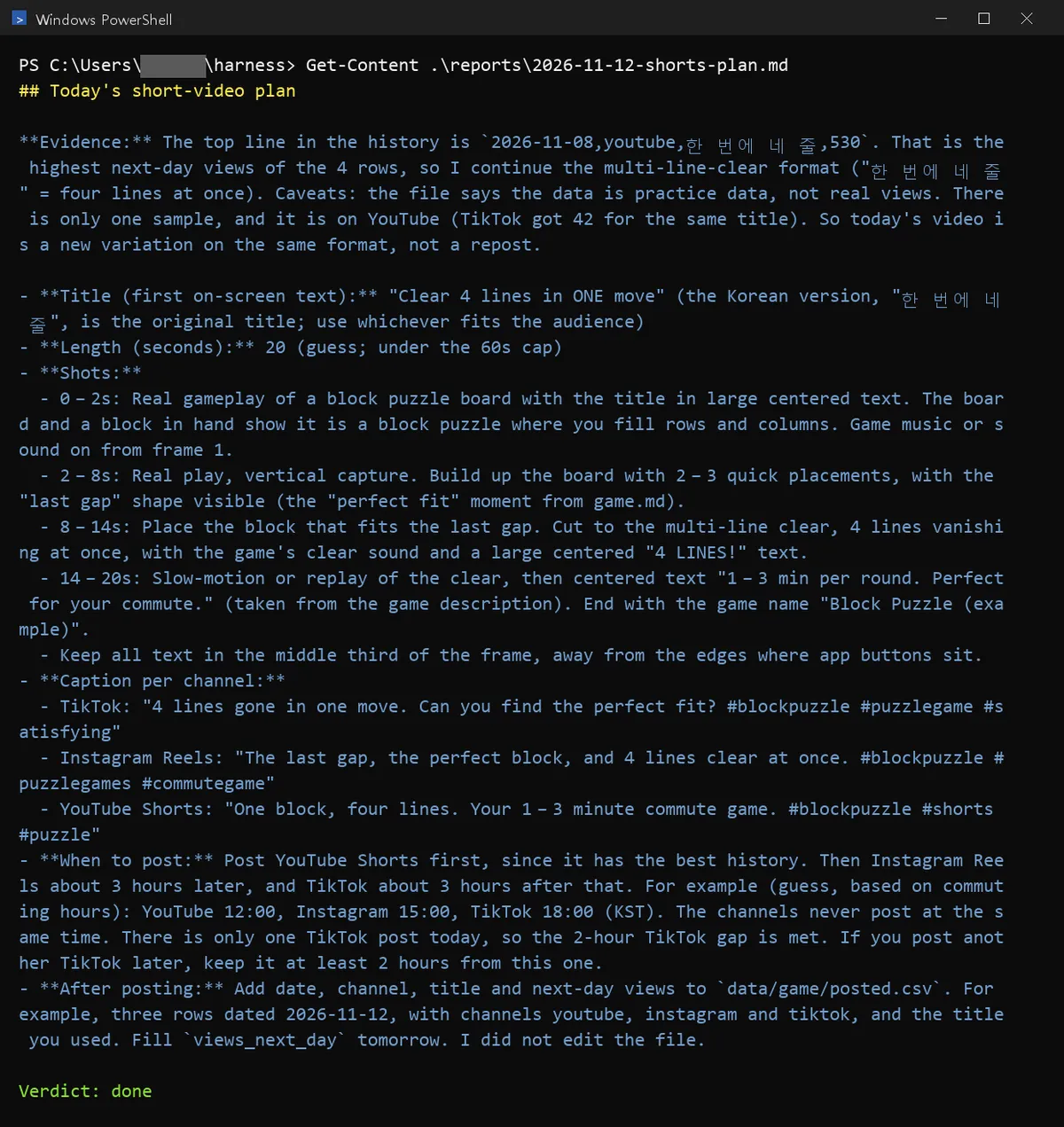
The plan the English shorts-plan prompt wrote from the practice log on our PC on Nov 12, 2026, shown in full with nothing cut. The Korean words are titles copied from the Korean sample log. Read it top to bottom: evidence, title and length, shots, captions, posting times, after posting, verdict.
It worked if
the window ends with one line such as 끝: shorts-plan status=ok exit=0 보고서 reports\latest-shorts-plan.md. The runner's messages are Korean: 끝 means finished and 보고서 means report. If your sign-in is close to expiring, / 로그인 만료 예고 있음 (sign-in expiry warning) is added at the end. The plan itself has shots by the second and a Verdict: done line.
The evidence section copied the log row with the most views, 2026-11-08,youtube,한 번에 네 줄,530, word for word, and added that TikTok got 42 for the same title. It also wrote that the log is practice data and that one sample on one channel is thin evidence.
The prompt keeps every plan vertical and 60 seconds or shorter. It also has four quality rules: recorded gameplay footage, game sound or music, large text near the centre of the screen, and the game made clear within the first two seconds. Three of these came from a real incident, described under "In the real harness" below.
The prompt allows only facts found in game.md and posted.csv, and asks the AI to mark guesses with "(guess)". Settle those marked parts yourself before you film. Our test plan marked two: the 20-second length and the posting times, which it aimed at commuting hours. The Korean run of the same job titled its plan "five lines" even though no file mentions five, and the plan itself said to change the number to however many lines the real play clears. Check details like that before filming too.
Step 4: Film and post to three channels
Record gameplay in the order of the shot list and export a vertical video. YouTube counts a video as a Short when it is vertical or square and three minutes or shorter (for uploads from Oct 15, 2024). The prompt's 60-second cap keeps plans inside that limit.
TikTok (desktop browser)
In a desktop browser, open https://www.tiktok.com/tiktokstudio (TikTok Studio) and log in.
Click Upload.
Click Select video and choose your file.
Paste the plan's TikTok caption and follow the on-screen steps to post.
A browser upload sends the whole video; to trim it, upload from the TikTok app. Scheduling from the desktop is open only to Business accounts or accounts with 10,000 or more followers. If yours qualifies, turn on the schedule toggle and pick a date and time, from 15 minutes to 10 days ahead, in your computer's time zone. If not, post by hand at the planned time.
Note
A scheduled TikTok post can't be edited, only deleted. Check the caption and video before you schedule.
YouTube Shorts
Upload from the YouTube app or YouTube Studio (YouTube's channel dashboard). Both take Shorts up to three minutes. Use the plan's YouTube Shorts caption as the description.
Instagram Reels
Follow the Instagram app's upload steps. We could not confirm Reels length limits or scheduling in official documentation, so we don't state them here.
The plan spreads the three channels over different times, because the prompt says not to post all three at once and to keep TikTok posts at least two hours apart.
Step 5: Log the next day's views and schedule the job
Tomorrow's plan can only learn from what you write down. A CSV file is a table saved as text, with commas between the columns.
On the day you first post for real, remove the practice rows. Open the file:
notepad .\data\game\posted.csvDelete the first line (it starts with
#and marks the rows as practice data) and the four rows that start with 2026-11-08 or 2026-11-09. Keep onlydate,channel,title,views_next_day.The next day, look up each video's view count and add one line per channel: date, channel, title, views. Write the channel as tiktok, instagram or youtube, and replace the last field with the number.
2026-11-12,youtube,Clear 4 lines in ONE move,(views)Leave commas out of titles, because a comma starts a new column. Save with Ctrl+S.
The order part 11 recommends is to get a week of ga4-daily reports first, then switch on the other jobs one at a time. When this job's turn comes, schedule it as in part 7. 10:00 is the example time from part 7.
.\register-job.ps1 -Name shorts-plan -At 10:00
It worked if
the next day's evidence section quotes your line with the most views. With an empty log, the prompt tells the AI to write "no history" (we did not test that case).
If you get stuck
| If you see | Why | Do this |
|---|---|---|
Red text containing running scripts is disabled | scripts are blocked in this window | enter the Set-ExecutionPolicy line from step 3 first (part 6) |
| The evidence section mentions practice data | the practice rows are still in posted.csv | delete them as in step 5 |
A Verdict: partial failure (…) line | part of the plan could not be written | read the reason, fix game.md or posted.csv, run again |
| No schedule toggle on TikTok | not a Business account and under 10,000 followers, or a phone browser | post by hand at the planned time |
| YouTube doesn't treat it as a Short | longer than three minutes, or landscape | re-export at three minutes or less, vertical or square |
| On-screen text doesn't match your game | the AI filled a gap in game.md with a guess | add detail to game.md and fix the text before filming |
In the real harness
The SugarMount harness has made game videos every day since Oct 31, and unlike the kit it posts them itself. Three things it ran into ended up in the kit.
On Nov 1 the operator judged the videos too low in quality. The game video had no sound, all three apps' videos were slideshows of still frames, and small text near the edges was hidden by TikTok's on-screen buttons. Since then a video goes out only after a machine check and a review by a separate AI, and three of the kit's four quality rules (real gameplay, sound, large centred text) come from that verdict.
In October, TikTok videos posted two to four minutes apart got zero views. TikTok posts have been at least two hours apart since, and the kit's prompt keeps the same gap.
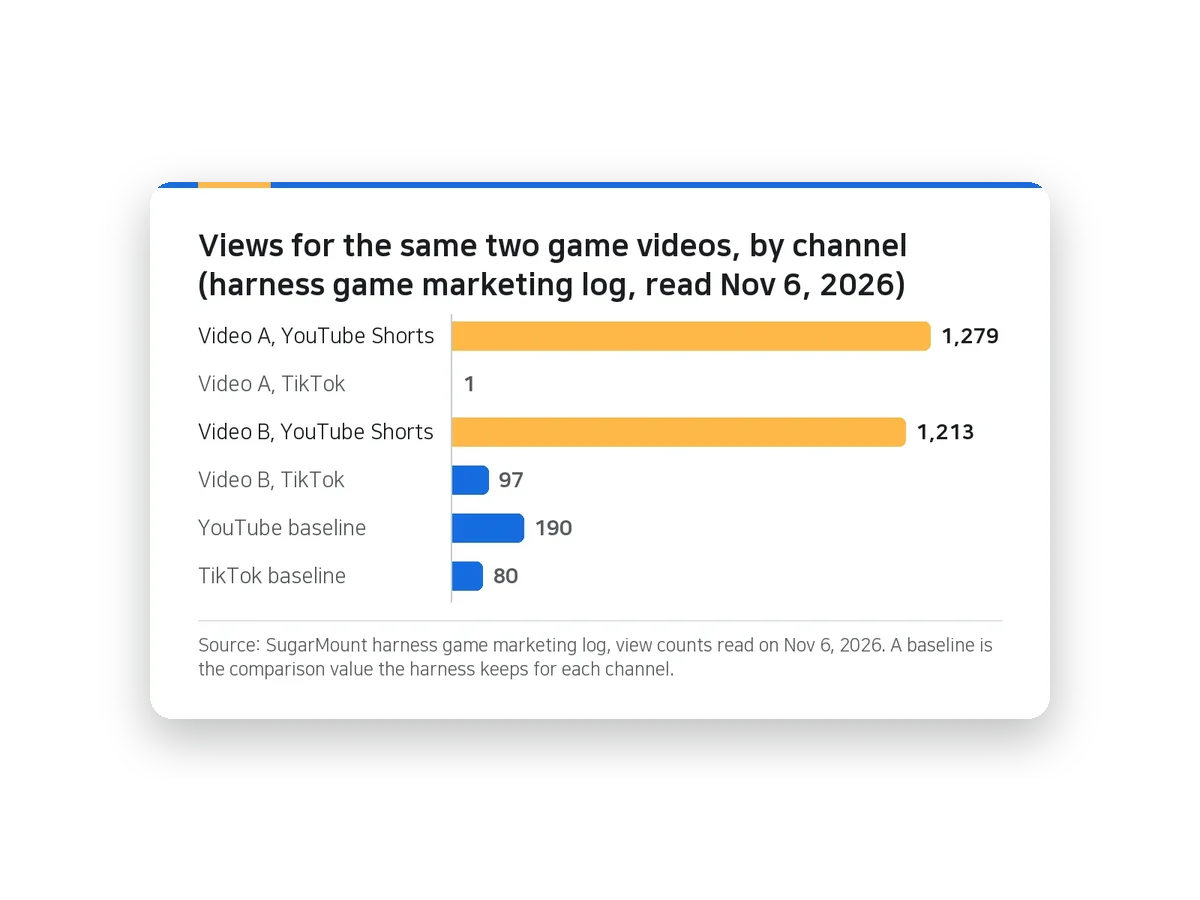
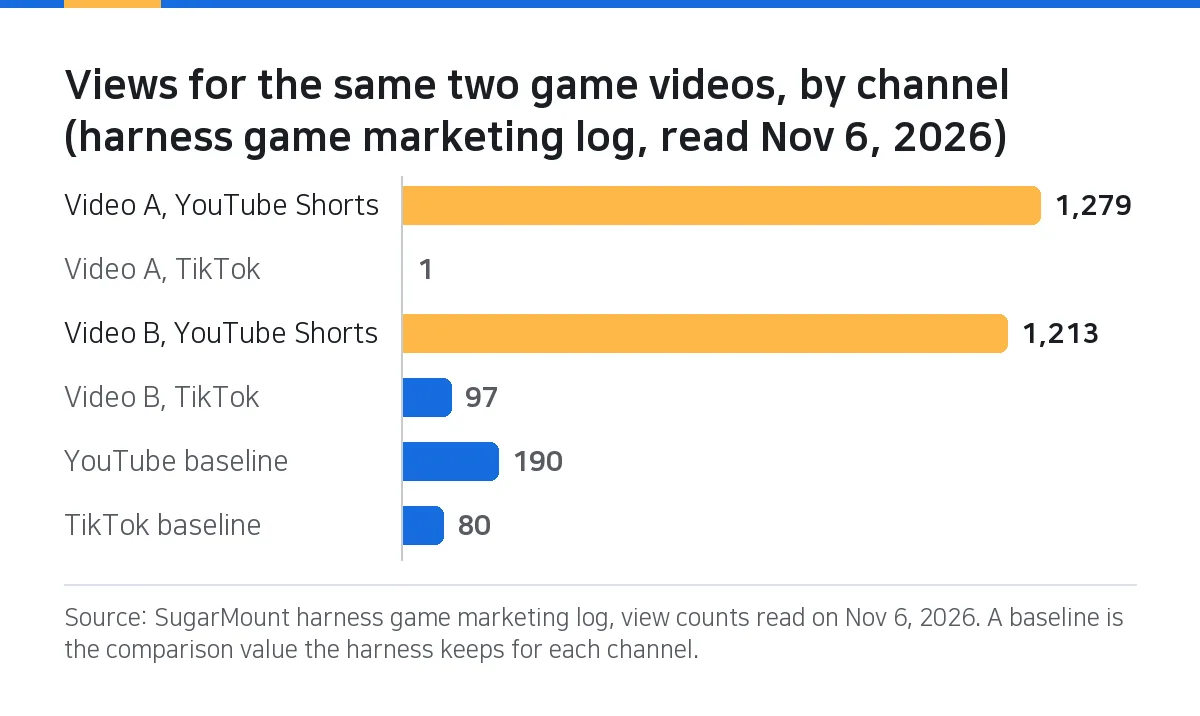
Results also split sharply by channel for the same video. In the chart, video A got 1,279 views on YouTube Shorts and 1 on TikTok, and video B got 1,213 on YouTube and 97 on TikTok. That is why posted.csv has a channel column and you log each channel separately.
As of Nov 12, 2026. Official help pages: YouTube Help on Shorts length, TikTok Help on making a post and scheduling (checked Nov 11, 2026), and TikTok's newsroom post on TikTok Studio (May 24, 2024); output from running the kit on our own PC (Nov 12, 2026); harness run logs and game marketing records (Oct 31 to Nov 11, 2026).
This note is written from values SugarMount measured itself; an AI coding agent was used to draft it.