Convert HEIC to JPG on a Samsung Galaxy phone
To turn HEIC photos you already took into JPG, use a converter app that saves new JPG files. Convert Image does several at once on your phone, without uploading, and leaves the originals untouched.
This article is based on Convert Image JPG PNG WEBP 1.0.3, an Android app made by SugarMount. If you want future photos saved as JPG from the start, read "Without an app" first.
Contents (8)
HEIC vs JPG
HEIC is a file in the HEIF photo format, compressed with HEVC (H.265). JPG is far older, and almost every website, program and printer accepts it. That is why a HEIC photo that looks fine on your phone can be rejected by an upload form or fail to open on a PC.
Whether Android itself can read HEIC depends on the device. The supported formats table in the Android developer documentation says this about HEIF decoding:
"Android 9.0+ … Device optional. Check ImageDecoder.isMimeTypeSupported("image/heif") for 8-bit support. 10-bit decoding requires optional HEVC Main10 profile."
Without an app, and the limits
- Turn off HEIF (high efficiency) saving in the camera — some phones have a camera setting for it. With it off, new photos are saved as JPG. The menu name and place vary by model and version. Photos you already took stay HEIC.
- Conversion when sharing from the gallery — depending on the model, the gallery may have a setting that sends photos as JPG when you share them. It only applies to what you share, and may not leave a JPG file on the phone.
- Convert on a PC — the PC program has to read HEIC, and you need to move the photos first.
- Upload to a converter website — no install, but the photos go to that site's server. Avoid it for photos of faces, IDs or documents.
Convert HEIC to JPG with Convert Image
- Pick the photos — on the home screen tap Select photos or Pick from files and choose your HEIC photos. Use Pick from files to keep the original file names: the photo picker does not share names, so photos picked there are saved as "SugarConvert + time". The JPG for forms quick start (quality 90, transparent areas white) starts with JPG settings ready.
- Check the selection — the Selected photos screen shows the count and total size. If HEIC photos are included, a notice says they convert only where the device can decode them. Tap Next.
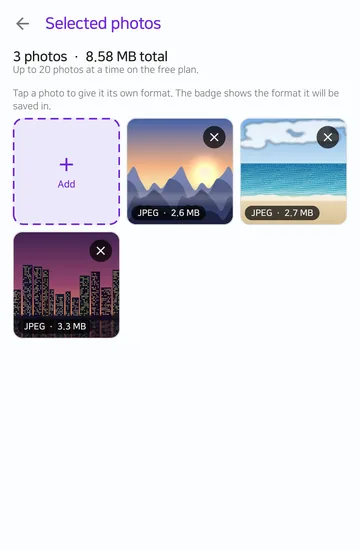
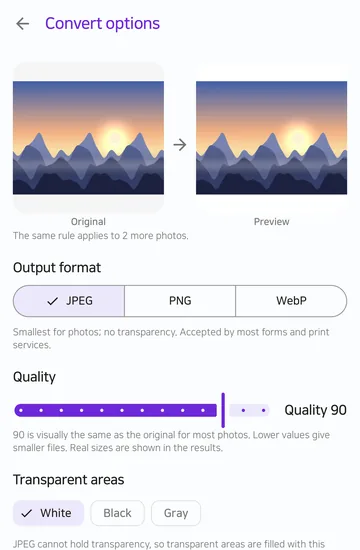
Store screenshot taken for version 1.0.0. The sample photos are JPEGs. - Choose JPEG — under Output format on Convert options, choose JPEG and set the quality. The default is 90; lower values give smaller files. Then tap Create results.
Store screenshot taken for version 1.0.0. - Check and save — the Results screen shows the real size and resolution before and after. Tap Save all. The JPG files are saved as new files in Pictures/SugarConvert; the original HEIC files are not changed.
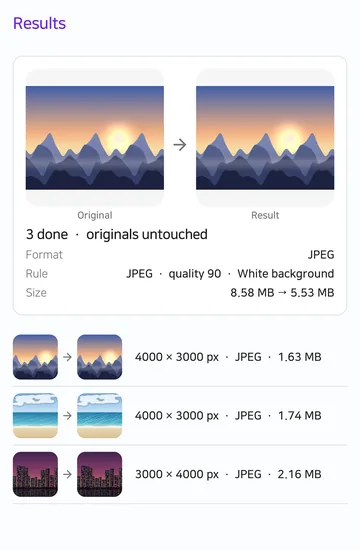
Store screenshot taken for version 1.0.0. The sample photos are JPEGs. - If some photos fail — a HEIC the device cannot decode is marked as failed on its own, and the rest continue. Retry failed only runs just those again. If they keep failing on the same phone, see "When it fails, and the limits".
Test record: during development, HEIC input was checked on a Galaxy S21 (Android 15) with version 1.0.1 (September 25, 2026). Results on other models depend on whether the device has a HEIC decoder.
Methods compared
| Method | Photos already taken | Upload | Many at once | Use it when |
|---|---|---|---|---|
| Camera HEIF setting off | Not changed | None | Not applicable | You want future photos saved as JPG |
| Gallery share conversion (some models) | Only when shared | None | Varies by model | You only need to send a few photos in a chat |
| PC program | Yes | None | Depends on the program | The photos are already on your PC |
| Converter website | Yes | Sent to a server | Varies by site | Only for photos without faces or documents |
| Convert Image app | Yes, if the device can decode them | None | Free 20 per job, Pro 100 | You need JPG files on the phone to upload or attach |
Verdict: to keep HEIC photos you already took as JPG files on your phone, a converter app is the quickest. If the problem is future photos, change the camera setting. Doing both means less converting later.
When it fails, and the limits
- HEIC the device cannot decode is not converted. The app reads photos with the phone's own decoder. Without one, or for HEIC the device does not support (such as 10-bit), that photo fails. Use a PC instead.
- EXIF data such as date taken and location is not copied. The new JPG has no photo metadata. The photo's orientation is applied when saving.
- HEIF files holding several images are not supported. Image sequences such as burst shots are refused.
- Size limits. Up to 50 MB and 50 megapixels per photo.
- Quality does not improve. JPG compresses again, so even quality 100 is not better than the original. A file can end up larger than the original; the Results screen shows it when that happens.
- The original HEIC stays. Results are new files, so you have both. Delete the originals in your gallery if you no longer need them.
FAQ
Where are the converted JPGs?
They are saved as new files in the Pictures/SugarConvert folder on your phone. You can also share them straight from the Results screen.
Are my photos uploaded?
No. Photos are converted on the phone only, and the app asks for no storage permission; it reads only the photos you pick. Anonymous usage statistics and error reports contain no photos or file names, and you can turn them off in Settings. Details are in the Convert Image JPG PNG WEBP privacy policy.
Is it free?
The free version converts up to 20 photos at a time. Pro is a one-time purchase that removes ads and allows 100 photos at a time. It is not a subscription.
Can I convert to PNG or WebP instead?
Yes. Choose PNG or WebP as the output format; you can even give single photos their own format. Saving as HEIC is not available.
Does converting HEIC to JPG lose quality?
JPG compresses again, so there can be a small difference. At the default quality of 90, most photos look the same as the original. Raise the quality if detail matters, lower it if file size matters.
Related articles
Get Convert Image JPG PNG WEBP
An Android app that turns HEIC, PNG and WebP photos into new JPG, PNG or WebP files. It handles several photos at once on your phone, with no upload and no sign-up. Requires Android 10 or later.