Compress a photo to under 100 KB on Android
Your phone's gallery can make a photo smaller, but it can't promise a file size. When a form says "under 100 KB", use an app that lets you type the limit in KB and checks the real file size.
This guide uses Compress Image (SugarCompress) 1.0.6, an Android app made by SugarMount. Gallery menu names vary by phone model and software version.
Contents (9)
Without an app: Resize in the Galaxy Gallery
The built-in Gallery app on Galaxy phones can shrink a photo's dimensions. Samsung's support guide lists these steps:
- Open the photo in Gallery and tap Edit.
- Tap More options (the three dots) and choose Resize.
- Pick a percentage, tap Done, then Save. To keep the original, choose Save copy from More options before saving.
"Resizing the photo to be larger than its original size is not an option."
Source: Samsung UK, How to resize a photo in the Gallery app on your Galaxy phone. The same page notes: "The resize feature may not be supported depending on the model version."
Limits of this method
- You choose a percentage, not a file size. You have to save, check the file size, and resize again if it is still too big.
- A plain save can replace the original. Samsung's guide says that on Android 11 saving overwrites the original unless you pick Save copy.
- One photo at a time. The guide covers editing a single photo.
Some image compression websites let you set a size in KB, but your photo is uploaded to their server. For ID photos or document scans, that may matter to you.
Fit a photo under 100 KB with Compress Image
- Tap 100 KB — Under Quick start on the home screen, tap 100 KB. This sets the limit to 100 KB and opens the photo picker. You can also tap Select photos and set the limit on the next screen.
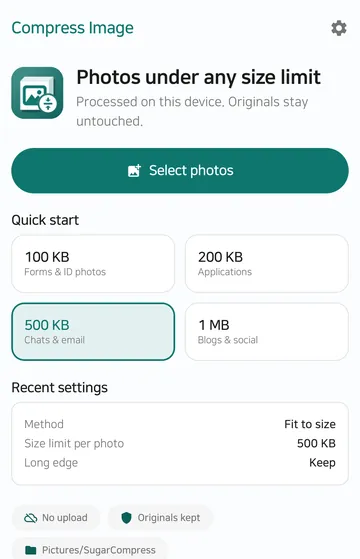
- Pick photos — Choose photos in the Android photo picker. The free version handles up to 20 at a time. Check the list and tap Next.
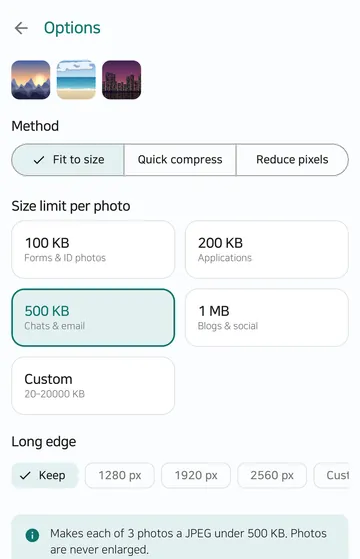
- Check the limit and create — On the Options screen, make sure the method is Fit to size and the size limit per photo is 100 KB. For another number, use Custom and enter 20 to 20000 KB. Tap Create results.
- Review the results — Each photo shows its original size and its new size. The new size is the real size of the file that will be saved. A photo that could not fit the limit is marked as failed.
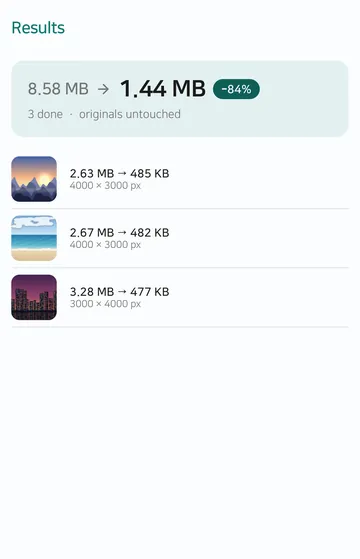
- Save or share — Tap Save all to save new files in
Pictures/SugarCompress. Originals stay untouched. Tap Share to send them right away.
These are real app screens taken for the Google Play listing (version 1.0.1), so the example uses a 500 KB limit. Button and menu names are the same in 1.0.6.
How the app fits a photo under 100 KB
Fit to size first adjusts JPEG quality between 95 and 40, looking for a high quality that still fits the limit. If even quality 40 is too big, it shrinks the photo's long edge step by step and tries again. It never goes below 320 px on the long edge and makes at most 20 attempts or 30 seconds per photo. If nothing fits, it says "The size limit could not be reached. Try a larger limit." and does not count that photo as a success.
To set the resolution yourself, choose 1280, 1920 or 2560 px, or a custom value from 320 to 8000 px, under Long edge on the Options screen. Photos are never enlarged.
500 KB, 200 KB and 50 KB work the same way
Quick start offers 100 KB, 200 KB, 500 KB and 1 MB. For any other number, use Custom on the Options screen, from 20 KB to 20000 KB. A low limit such as 50 KB makes the photo smaller and softer, and some photos may not fit at all. The limit applies to each photo separately; the app does not fit a group of photos into a total size.
Methods compared
| Method | Set a KB limit | Photo uploaded | Original | Several photos |
|---|---|---|---|---|
| Gallery Resize | No (percentage only) | No | Can be overwritten; kept with Save copy | One at a time in the guide |
| Compression website | Depends on the site | Yes, to the site's server | Kept on your phone | Depends on the site |
| Compress Image, Fit to size | Yes (20 to 20000 KB) | No, processed on the device | Kept; results saved as new files | 20 free, 100 with Pro |
Verdict: If a form sets a hard limit like "under 100 KB", an app that takes the limit in KB gets it done in one pass. If you only want a lighter photo with no exact limit, the Gallery's Resize is enough.
When it fails, and what it can't do
- A very low limit can fail. If the photo is still too big at the lowest quality and resolution, it is marked as failed. Raise the limit a little and try again.
- Results are JPEG. Transparent areas in PNG or WebP become white, and animated images are not supported. If a form requires PNG, this app can't help.
- Photos are never enlarged. It can't raise a photo's resolution.
- HEIC works only if your phone can decode it. Unsupported or unreadable files are skipped, and the app tells you how many.
- Very large photos are refused. A photo over 50 MB or 50 megapixels is not processed.
- No cropping to exact dimensions. For ID photos with set pixel sizes or ratios, see Resize a photo for Korean ID and application uploads.
FAQ
Is 1 KB 1000 bytes or 1024 bytes?
The app counts 1 KB as 1000 bytes, so a 100 KB limit means at most 100,000 bytes. If a site counts 1 KB as 1024 bytes, its 100 KB is 102,400 bytes, so a photo the app fitted is still under the limit.
What if my photo is already under 100 KB?
A JPEG result is never larger than the original. If the photo is already small enough, the app keeps it at original quality without recompressing and removes only location and camera info.
Are my photos uploaded?
No. Photos are processed on your phone, and neither photos nor file names are sent to a server. See the Compress Image privacy policy for details.
Does it cost anything?
Every method, including Fit to size, is free, and the free version shows ads. Pro is a one-time purchase that removes ads and handles up to 100 photos at a time. It is not a subscription.
Where are the saved photos?
In the Pictures/SugarCompress folder, as new files. You can also find them in your gallery app.
Related guides
Get Compress Image
An Android app that shrinks photos for forms, uploads and messages to under a size you choose, such as 100 KB or 500 KB. Photos are processed on your phone and never uploaded, and originals stay untouched. Requires Android 10 or later.