PNG to JPG on Android with a white background
JPG cannot store transparency, so converting a PNG to JPG fills its transparent areas with one solid colour. On Android, choose that colour in a converter app, set it to white, and save the result.
This guide uses SugarMount's Android app Convert Image JPG PNG WEBP (SugarConvert). Other converters work on the same principle: transparent areas always become a colour.
Contents (8)
Without an app, and the catch
There are two common ways to convert without installing anything on the phone.
- A web converter — upload the PNG in a browser and download a JPG. Nothing to install, but the image goes to that site's server. Not a good fit for IDs or documents, and the fill colour for transparent areas and the number of files per run vary by site.
- An image editor on a computer — move the file to a PC and save it as JPEG. No upload, but you have to move files back and forth, and the colour transparent areas turn into depends on the program.
Either way, the JPG keeps no transparency. Check that the formerly transparent area is the colour you want.
Convert with the app
- Check the preset — on the home screen, make sure JPG for forms is selected: quality 90, transparent areas white. It is the default the first time you open the app.
- Pick the PNG files — tap Select photos or Pick from files. Use Pick from files to keep the original file names; the system photo picker does not share names, so those files are saved as SugarConvert plus the time. If a PNG has transparent areas, the Selected photos screen tells you they will be filled with the background colour. Tap Next.
- Choose the background colour — on Convert options, check that the output format is JPEG and pick White, Black or Gray under Transparent areas. Set quality between 40 and 100 (default 90) and check the preview.
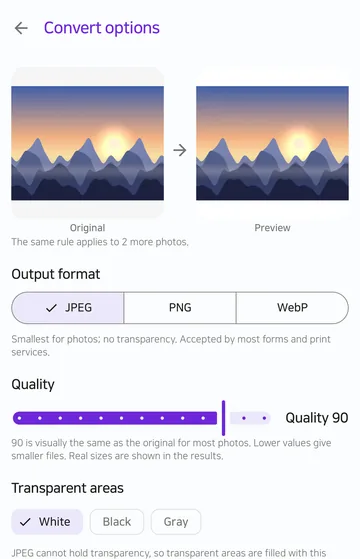
Convert options. With JPEG selected, a row appears for the colour that fills transparent areas. - Create and save — tap Create results, compare the original and the result side by side, then tap Save all. Items whose transparency was filled are marked "transparent areas filled with white". Results are saved as new files in
Pictures/SugarConvert; the original PNG stays as it was.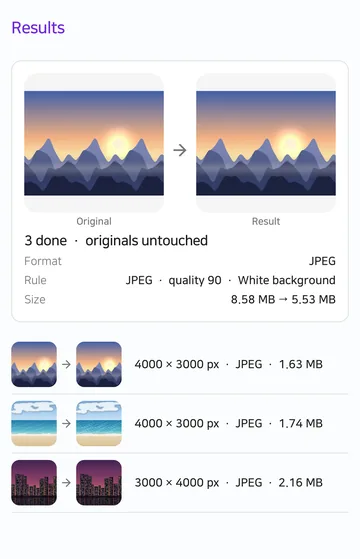
Results. This capture uses three sample photos; the Rule line lists format, quality and background colour.
Screens are cropped from the store captures in the app's repository. Wording and layout may differ slightly between app versions.
Which method to use
| Method | Upload | Colour for transparent areas | Several files at once | Verdict |
|---|---|---|---|---|
| Web converter | Yes, to the site's server | Varies by site | Varies by site | Fine for one or two non-sensitive images |
| Image editor on a PC | No | Varies by program | Usually one at a time | Good if the file is already on the PC |
| Convert Image app | No, converted on the device | White, Black or Gray | 20 free, 100 with Pro | Easiest for several PNGs already on the phone |
Why transparency turns into a colour
PNG can store how transparent each pixel is. The W3C PNG specification says:
“Indexed-color, greyscale, and truecolor images are supported, plus an optional alpha channel.”
Source: W3C, Portable Network Graphics (PNG) Specification (Third Edition). The alpha channel is the transparency data.
JPEG has no such data. The Android developer documentation notes it when describing how images are compressed and saved:
“JPEG only supports opaque pixels”
Source: Android Developers, Bitmap.compress().
So a PNG-to-JPG conversion has to decide what colour goes where the image was transparent. The app paints the chosen colour first and draws the image on top, so soft, semi-transparent edges blend into that colour. A PNG with no transparent areas converts the same whatever colour you pick.
What it can't do
- A JPG cannot keep transparency. If you need it, save as PNG or WebP and choose Keep for transparent areas.
- The background can only be white, black or gray. There is no custom colour.
- Converting a JPG back to PNG does not restore lost detail or transparency, and the file may get larger.
- Animated images are not converted; that item fails and the rest continue. Each image can be up to 50 MB and 50 MP.
- No cropping or background removal. The only resize is shrinking the long edge.
- Location and camera data (EXIF) are not copied to the result.
FAQ
Does converting PNG to JPG lower the quality?
JPEG is lossy, so some detail is lost depending on the quality value. The default of 90 looks the same as the original for most photos; lower values give smaller files. The Results screen shows the real file sizes.
Can I fill transparency with black instead of white?
Yes. Pick Black or Gray under Transparent areas on the Convert options screen. Other colours are not available.
Will the JPG be smaller?
Photos with many colours usually get smaller, but simple graphics can get larger. If a result is larger than the original, the Results screen says so.
Where are the converted files saved?
As new files in the phone's Pictures/SugarConvert folder. The original PNG is not changed or deleted.
Are my images uploaded?
No. Conversion happens on the device and nothing is uploaded. See the Convert Image privacy policy for details.
Related guides
Get Convert Image JPG PNG WEBP
An Android app that turns HEIC, PNG and WebP into JPG, transparent PNG or small WebP files, saved as new files. It converts several images at once on the device and leaves the originals untouched. Requires Android 10 or later.