Unmirror a selfie on a Samsung Galaxy phone
To fix a selfie you already took, flip it left to right and save it as a new photo. Google Photos does one picture at a time; the Flip & Rotate Image app's "Selfie as others see it" preset fixes a whole batch at once.
This article is based on Flip & Rotate Image 1.0.3, an Android app made by SugarMount. The screens below are store captures of version 1.0.0 with demo photos; the menus shown are the same in 1.0.3.
Contents (8)
Why selfies look flipped
While you take a selfie, the front camera shows you a mirror image, so you see the face you know from the mirror. Other people see the opposite. The Android developer documentation describes the front-camera preview like this:
"Note that preview display of front-facing cameras is flipped horizontally before the rotation, that is, the image is reflected along the central vertical axis of the camera sensor. So the users can see themselves as looking into a mirror."
Source: Android Developers, Camera.setDisplayOrientation. This is the older camera API, but the mirrored preview works the same way.
Whether the saved photo keeps that mirror view or is stored the way others see you depends on the phone and its camera settings. Galaxy camera settings include a related option, but its name and location vary by model and software version, so we don't name it here. It applies to photos you take from then on; photos you already took stay as they are. Fix those with one of the methods below.
Without a new app, and the limits
If your phone has Google Photos, you can mirror one photo at a time in its editor. The Google Photos Help Center gives these steps:
- Open the photo in Google Photos and tap Edit at the bottom.
- Tap Crop, then Mirror.
- Tap the checkmark (Done), then choose Save or Save as copy.
"Save: Saves your changes to the original photo." "Save as copy: Makes a new photo with your edits without changes to the original."
Source: Google Photos Help, Edit your photos (Android)
Limits: one photo at a time. "Save" changes the original, so pick "Save as copy" if you want to keep it. Menu names can change between Google Photos versions. The Galaxy Gallery editor also differs by version, so we don't cover it here.
Fix many selfies at once with Flip & Rotate Image
- Tap "Selfie as others see it" — Under Quick start on the home screen, tap Selfie as others see it. It sets a left-right flip and opens the photo picker right away.
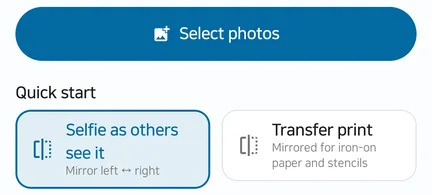
- Pick your selfies — Choose them in the Android photo picker: up to 20 at a time for free, 100 with Pro. Check the list and tap Next.
- Check the preview — The Transform screen lists "1 · Flip left ↔ right" under Applied in order. Compare the original with the preview and leave the output format on "Keep original". Tap Create results.
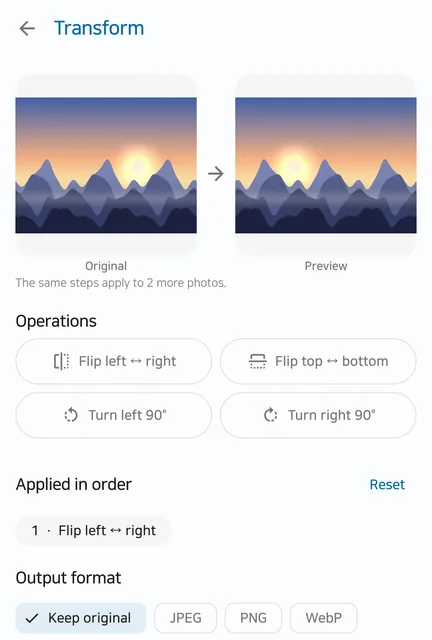
- Save and share — On the Results screen, compare the original and the result again, then tap Save all. The results go into the
Pictures/SugarFlipfolder as new files and the originals stay untouched. You can also tap Share.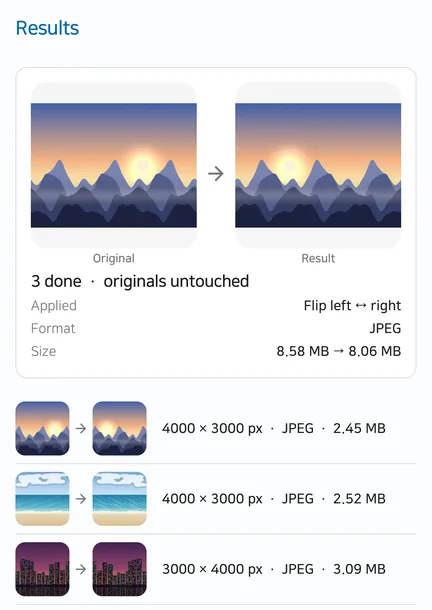
The app applies the orientation your phone recorded in the photo (EXIF) first, so the flip follows the way the photo looks in your gallery. The same steps also turn an already unmirrored selfie back into the mirror view.
Methods compared
| Method | Photos already taken | Many photos | Original | Best for |
|---|---|---|---|---|
| Change the camera setting | Not changed | — | — | Choosing how future selfies are saved |
| Google Photos Mirror | Yes | One at a time | "Save" changes it; "Save as copy" makes a new photo | Fixing one or two photos |
| Flip & Rotate Image, "Selfie as others see it" | Yes | 20 free, 100 with Pro | Always saved as a new file; original untouched | Fixing a batch the same way at once |
Verdict: for one or two photos, Google Photos' Mirror with "Save as copy" is quickest. For a batch of selfies from a trip or a party, Flip & Rotate Image is easier. To change future selfies, check your camera settings separately.
When it doesn't work, and limits
- It doesn't change your camera settings. The app fixes photos you already took; new selfies are still saved the way your camera is set.
- Photos only. Selfie videos and animated images (such as animated WebP) can't be flipped.
- You can't send photos to it with Share from your gallery. Pick them inside the app with "Select photos" or a preset.
- Photo details (EXIF) are not kept in the result. If you need the date or location, keep the original.
- JPEGs are saved again at quality 95. The resolution stays the same, but the file isn't identical to the original and its size can change a little.
- Each photo can be up to 50 MB and 50 megapixels.
- Two left-right flips produce no result. They cancel out, and the app tells you so. Tap "Reset" under Applied in order and pick again.
FAQ
The text in my selfie is backwards. Will flipping fix it?
Yes. Backwards text means the photo was saved as a mirror image; flipping it left to right makes the text readable.
Will my original selfie be changed or deleted?
Flip & Rotate Image leaves the original alone and writes a new file to Pictures/SugarFlip. In Google Photos, "Save" changes the original, so choose "Save as copy".
Are my photos uploaded anywhere?
No. Flip & Rotate Image processes photos on your phone and doesn't upload them. See the Flip & Rotate Image privacy policy for details.
Does flipping lower the quality?
The resolution stays the same. JPEGs are saved again at quality 95, so the file isn't byte-for-byte identical. The Results screen shows the size before and after.
Can future selfies be saved the way others see me?
That is set in your phone's camera app. Flip & Rotate Image doesn't change camera settings.
Related articles
Get Flip & Rotate Image
An Android app that flips mirrored selfies and sideways photos left-right or top-bottom, turns them 90° at a time and saves the result as a new file. It asks for no storage permission and runs on Android 10 and later.