Convert an HWP file to PDF on Android
Open the HWP or HWPX file in HWP Viewer SugarDoc, tap ⋮ (More options) and then Save as PDF, and pick a folder. The PDF is made on your phone without uploading the document. Long documents are cut to the first 15 pages.
This guide is based on HWP Viewer SugarDoc 1.2.0, an Android app made by SugarMount. The Save as PDF menu item arrived in 1.2.0; on older versions use the print screen instead (see below). The screenshots show the app in Korean.
Contents (9)
Without an app, and the catch
HWP and HWPX are Korean word-processor formats, and Android phones usually have no app that opens them. If the phone cannot open the file, it cannot print it to PDF either, so the app-free options are all off the phone:
- Ask the sender for a PDF. They export it from the program that made it, so the layout matches best. You have to wait for a reply.
- Save as PDF in a desktop HWP program. Good for long documents where layout matters. Needs a computer with the program.
- Upload to a web converter. Nothing to install, but the file goes to that site's server. Avoid it for letters or forms with names, phone numbers or addresses.
Save as PDF in HWP Viewer SugarDoc
- Open the document — tap the HWP or HWPX file in KakaoTalk, email or your file manager and choose HWP Viewer from Open with or Share, or pick it with Find in my files inside the app.
- ⋮ → Save as PDF — tap ⋮ at the top right of the document and choose Save as PDF.
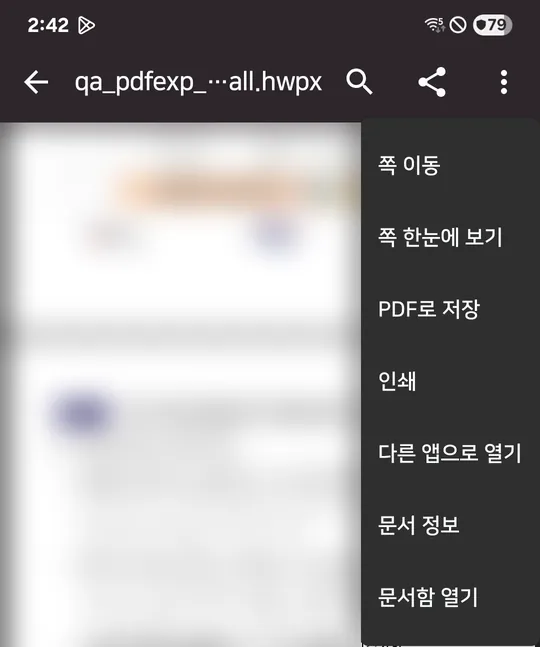
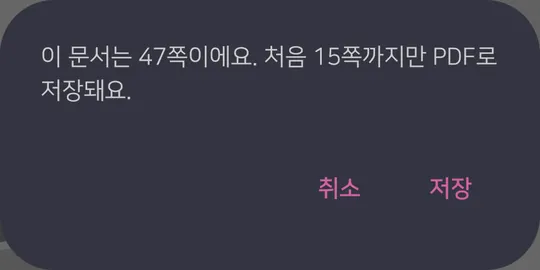
Document content is blurred. - Check the page notice — if the document is longer than the limit, the app tells you how many pages will be saved first. Tap Save to go on or Cancel to stop without making a file.
- Pick where to save — Android's save screen opens with the document's name plus .pdf filled in. Choose a folder and tap Save.
- Done — the message "Saved as a PDF." appears. The HWP or HWPX file you received is not changed.

Checked on a Galaxy S21 (Android 15) with the SugarDoc 1.2.0 release build on October 18, 2026: a 47-page HWP document showed the notice and produced a 15-page PDF, and a 3-page HWPX document was saved with all 3 pages.
Save through the print screen
Tap Print in the ⋮ menu to open Android's print screen (on versions before 1.2.0 the item is called Print or save as PDF). Under Select printer, choose the save-as-PDF option (its name varies by phone) to keep the result as a PDF file. Use this if Save as PDF fails; the same page limit applies.
"In Android 4.4 (API level 19) and higher, the framework provides services for printing images and documents directly from Android applications."
Which way to use
| Method | Phone only | Upload | Length | Use it when |
|---|---|---|---|---|
| SugarDoc Save as PDF | Yes | None | First 15 pages (6 on low-memory phones) | You need a short notice or letter as a PDF right now |
| SugarDoc Print → PDF | Yes | None | Same as above | Save as PDF failed, or you are on a version before 1.2.0 (there the item is ‘Print or save as PDF’) |
| Ask the sender | Yes (you wait) | None | No limit | The layout must match, or it is longer than 15 pages |
| Desktop HWP program | No | None | Depends on the program | You need to edit a long document first |
| Web converter | Yes | To their server | Varies by site | The document has no personal information |
Verdict: for a document of 15 pages or fewer that you need as a PDF now, Save as PDF in the app is the quickest. For longer documents or forms where layout matters, get a PDF from the sender or make it on a computer.
Limits and what to do when it fails
- Only the first pages are saved. Usually the first 15, or the first 6 on phones with little memory. You cannot choose a page range.
- Distribution-only documents cannot be saved. When printing and copying are locked, Save as PDF and Print do not appear in the menu.
- PDF files have no Save as PDF. They are already PDFs, so only Print is offered, and a password-protected PDF cannot be printed.
- Layout may differ slightly. If the original fonts are not on your phone, similar fonts are used, so line breaks and spacing can shift. Open the saved PDF and check it before you submit it anywhere.
- If it will not open, it will not save. Documents locked by a company DRM program cannot be opened. If the file does not open at all, start with what to check when an HWPX file will not open.
- No PDF-to-HWP. SugarDoc is a viewer only.
About the HWP format
HWP is the native format of the Hancom word processor widely used in Korea. Its specification is public, which is why other apps can read it. Hancom says (in Korean) that it published the HWP binary format and the HWPML markup language on June 29, 2010: "한컴은 2010년 6월 29일에 자사의 바이너리 포맷인 HWP와 마크업 언어인 HWPML을 공개하였습니다."
Source: Hancom download center, HWP and OWPML formats. For how .hwp and .hwpx differ, see HWP vs HWPX.
FAQ
Does saving as PDF cost anything?
No. Save as PDF and Print need no payment, and the app has no ads.
Is my document uploaded anywhere?
No. SugarDoc does not send documents to a server; the PDF is made on your phone. See the HWP Viewer SugarDoc privacy policy.
Where is the saved PDF?
In the folder you picked on the save screen. The folder shown first can differ by phone, so check its name before you tap Save. Afterwards you can find the PDF in your phone's Files app.
Can I convert a document longer than 15 pages in full?
Not in SugarDoc. Only the first 15 pages (6 on low-memory phones) are saved. For the whole document, ask the sender for a PDF or make it on a computer.
If I cancel on the save screen, is an empty file left behind?
No. Cancelling on the save screen creates no file.
Related guides
Get HWP Viewer SugarDoc
An Android app that opens Korean HWP and HWPX documents and PDFs straight from KakaoTalk or email, and reopens them on the page you were reading. No ads and no sign-up. Works on Android 10 and later.
This product was developed with reference to Hancom's public HWP document file (.hwp) specification. SugarDoc is not affiliated with or endorsed by Hancom Inc. Hancom and HWP are trademarks of Hancom Inc.